

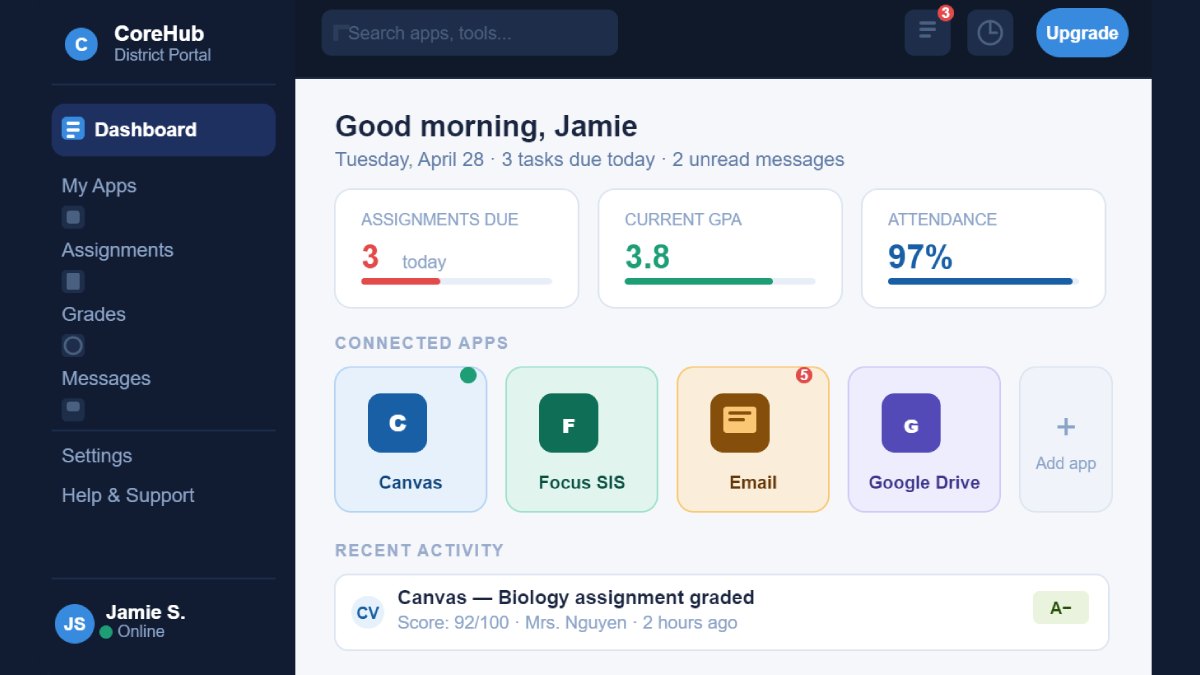
First day using the core app dashboard, I clicked on the wrong icon three times, accidentally opened something called “District Resources,” and gave up to go ask someone at the front desk. She looked at me like I’d asked her to explain gravity.
Nobody explains this stuff. They hand you a URL, maybe a username, and assume you’ll figure it out. Most people do – eventually – but it takes way longer than it should. So here’s the actual breakdown, written for someone who doesn’t have an IT background and doesn’t want one.
What the core app dashboard actually is
It’s a single login page that connects to everything your school or organization uses. Email, learning platforms, HR tools, district apps – instead of bookmarking 12 different sites with 12 different passwords, you hit one URL and everything’s sitting there.
The core dashboard app concept isn’t new, but the way it’s been adopted in education especially has gotten a lot more serious over the past few years. Districts realized that students – and staff – were spending an embarrassing amount of time just trying to find the right login page. The dashboard solves that.
What makes it different from, say, just having a Google account? It aggregates tools across platforms. Canvas, Google Workspace, district-specific software, attendance systems – things that live in different ecosystems – all accessible from the same hub. It’s not glamorous, but when it works, it genuinely removes friction from your day.
Core app dashboard login – and what to actually do when it breaks
The core app dashboard login is where most frustration lives. The actual login process is straightforward – enter your username (usually your school email), enter your password, done. But “done” is not always what happens.
When the login just doesn’t work
A few things to check before you call IT:
- Wrong URL. There are a lot of “core dashboard” pages online. Make sure you’re on your specific district’s link, not a generic one you found via Google.
- Caps lock. Genuinely, check it. Passwords are case-sensitive and this trips people up more than anyone admits.
- Cached login from a different account. If someone else used the same browser and saved their credentials, you might be getting their login page. Open a private/incognito window and try again.
- Account not yet activated. For new students or staff, the account sometimes needs to be provisioned first. If you’re day one at a new school, this is probably it – contact the front office, not IT.
Three failed attempts usually triggers a lockout. Don’t keep guessing. Hit “forgot password” or call your tech support line. Lockouts are resolved in minutes when you go through the right channel; they drag on when you don’t.
Core app dashboard and Canvas – how the integration actually works
Canvas is the learning management system a huge portion of schools use. Assignments, grades, course materials, teacher announcements – it all lives there. The canvas core app dashboard integration means you don’t have to go to Canvas separately. It’s just an icon on your dashboard that opens it directly, already logged in.
Through the core app dashboard canvas setup, you can typically:
- See upcoming assignments across all your courses without opening each one individually
- Get notifications when a teacher posts something new
- Submit work directly without navigating away from your dashboard context
- Access course files and media
If Canvas isn’t appearing in your dashboard, it’s almost never a student-side problem. Either the school hasn’t enabled it yet, or your specific account hasn’t been linked. Message your teacher and CC the tech coordinator – it usually gets sorted in a day.
Escambia County core app dashboard – what’s different here
The Escambia County core app dashboard serves students and staff across Escambia County School District in Florida. The structure follows the same unified portal logic, but the specific apps and access levels are set up for that district’s tools.
Through the Escambia core app dashboard, you’ll typically find access to:
- Canvas (the district’s primary LMS)
- Google Workspace apps
- Focus – the student information system the district uses (more on this below)
- Library and research databases
- Staff-only sections for HR, payroll, and professional development tools
Credentials come from the district. New students get theirs through their school at enrollment. If you’ve lost yours or are returning after a gap, your school’s front office is the right first call – they can usually reset access same-day.
One Escambia-specific note: parent access to student records goes through a separate parent portal, not the student dashboard. A lot of parents don’t realize this and spend time trying to log into the student-facing URL. If that’s you, ask your school specifically for the parent portal link.
Core app dashboard focus – the feature most people ignore
Core app dashboard focus refers to the Focus SIS integration – a student information system that handles grades, attendance, schedules, and school communications. In Escambia and several other districts, it’s embedded directly into the dashboard.
What you can actually see and do in Focus through the dashboard:
- Check attendance records – useful if you think something was marked wrong
- View your current grades per class in real time
- See your class schedule for the semester
- Read messages from teachers and administrators
- Access progress reports and report cards when they’re released
The Focus integration is genuinely useful once you know it’s there. Most students walk past it entirely because it’s not labeled obviously. Look for “Student Information” or “Focus” in your app tiles – or use the dashboard search bar if there is one.
The information technology core app dashboard – what IT teams actually manage
From an admin side, the information technology core app dashboard is a completely different experience. You’re not a user – you’re the person making it work for everyone else. And that responsibility is not small.
What IT teams manage from the backend:
- Account provisioning and deprovisioning – bulk-creating student accounts at the start of the year, removing them at the end. This is where a lot of time goes if it’s not automated.
- SSO configuration – setting up single sign-on so that clicking “Canvas” in the dashboard actually opens Canvas, already logged in. When SSO breaks, everything breaks.
- Permission groups – controlling which apps are visible to which users. A kindergartner shouldn’t see the same tools as a high school junior or a teacher.
- Login monitoring – flagging unusual login patterns, especially important for student data privacy compliance.
- Usage reporting – tracking which apps are actually being used, which helps the district decide what to renew and what to drop.
A well-configured core app dashboard dramatically reduces the “I can’t log in” tickets that eat up IT support time. Getting SSO right on the front end is worth the setup hours – you’ll feel it in the support queue within weeks.
Habits that make the core app dashboard actually work for you
These are small things, but they compound:
- Bookmark the real login URL. Not a Google search result for it. The actual URL from your district. Saves 30 seconds every time and prevents the “wrong site” login confusion.
- Set it as your browser homepage. If it’s the first thing you see, you’ll actually use it as the hub it’s meant to be.
- Keep your recovery email current. The password reset email goes somewhere. Make sure it’s somewhere you check.
- Don’t share your login. In school environments especially, shared logins cause attribution problems. If someone submits work under your account, that’s your record.
- Learn where the help docs are. Most dashboards have a help or support section. It’s worth reading once so you know it exists when you actually need it.
Wrapping up
The core app dashboard isn’t complicated once you understand what it’s actually for. It’s a hub, not a destination – a place to launch from, not linger in. Get your login solid, know where Canvas and Focus live inside it, and customize the layout to put your most-used tools up front.
After that, it mostly gets out of your way and lets you do the actual work. Which is the whole point of a good core app dashboard.
Also Read: Full Form of Wi-Fi – What Does Wi-Fi Actually Stand For?


TikTok Algorithm Explained by Tech Experts for More Views
TikTok is not just a social media app. It is one of the most sophisticated content recommendation engines ever built….

How PA-RISC Virtualization Solution Can Eliminate Data Center Costs in 2026
It is no secret that several enterprises still rely on outdated infrastructure and continue to spend millions every year just…