

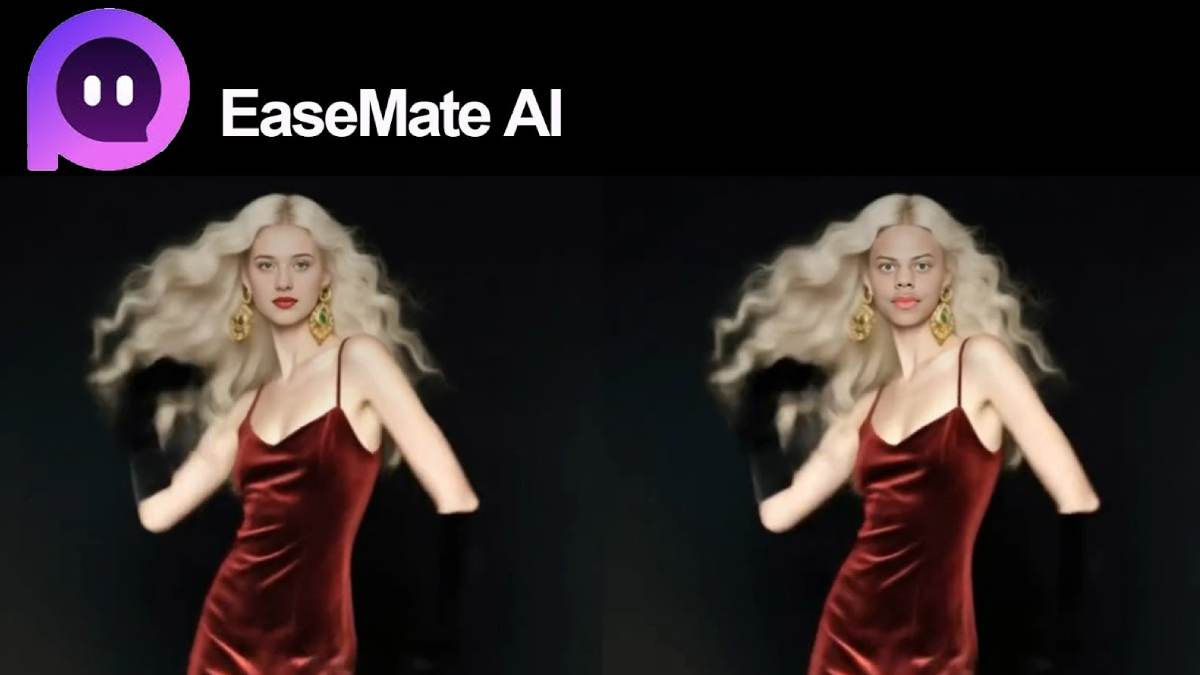
AI face swap video tools make it possible to replace a person’s face in a short clip without learning complicated editing software. You normally upload a video, add a clear photo of the replacement face and let the tool process each frame automatically.
That sounds simple, but choosing a tool is not. Some platforms provide only a few free credits. Others add a watermark, restrict video length or reserve HD downloads for paying users. Results can also change depending on lighting, camera angle and how much the subject moves.
For beginners, EaseMate AI is one of the easiest options to try. However, it is not the only choice. This guide compares EaseMate AI with other online tools and explains the limitations you should check before uploading your photos or videos.
Quick answer: EaseMate AI is a convenient starting point if you want a simple, watermark-free trial. Pica AI is useful when a clip contains multiple faces, while Magic Hour publishes especially clear free-tier limits. “Free” does not necessarily mean unlimited: credits, resolution, video length and watermarks can change.
Best Free AI Face Swap Video Tools at a Glance
The information below reflects the providers’ published pages on September 9, 2026. Free allowances and product rules can change, so confirm the current terms before starting a large project.
| Tool | Best for | Free-use position | Watermark information | Important limitation |
|---|---|---|---|---|
| EaseMate AI | Beginners who want a simple workflow | First video is available after registration; more use requires credits, check-ins, referrals or a credit pack | Provider says face-swap downloads are watermark-free | It is free to try, not clearly unlimited |
| Pica AI | Photo, video and multiple-face swaps | Provider offers free face swapping | Check the export screen before generating | Published limits and available credits may change |
| Magic Hour | Testing a short clip without installing software | Free video swaps up to 10 seconds at 480p | Free video and GIF results include a watermark | Higher resolution and watermark removal require a paid plan |
| Vidnoz | Users who also need avatars and general AI video tools | A free plan and credit-based access are available | Paid features advertise no-watermark exports; verify the free export before use | Credits, quality and processing priority depend on the plan |
| Picsi.Ai | More precise targeting and multi-face projects | Free access is advertised | Verify in the current Studio before exporting | Multi-face video swapping is listed as a paid feature |
This table is a feature comparison, not a laboratory ranking. Output quality can vary considerably from one video to another. Use the same source photo and short test clip in two or three tools before deciding which one works best for your project.
How Do AI Face Swap Videos Work?
An AI video face swap replaces the face visible in a video with a face supplied in a separate photograph. The software first detects the face in the source image and the face appearing in each video frame. It then estimates facial landmarks such as the eyes, nose, mouth and jawline.
A typical process looks like this:
- The system detects the faces in the photo and video.
- It maps important facial features and estimates the person’s pose.
- It generates or blends the replacement face across successive frames.
- It tries to preserve expressions, head movement, lighting and skin tone.
- It encodes the processed frames into a downloadable video.
This is more demanding than swapping a face in a single photo. The replacement must remain consistent while the person talks, turns or moves behind an object. If the face changes shape or position between frames, the final video may flicker or lose the person’s identity.
What Makes a Good Face Swap Video?
No online tool can guarantee a realistic result every time. The source material is often as important as the software.
For a cleaner face swap, use:
- A sharp, front-facing replacement photo
- Even lighting across the person’s face
- A video in which the original face remains visible
- Similar facial proportions between the two people
- A short test clip before processing a longer video
- Footage without hands, hair or objects repeatedly covering the face
Side profiles, fast movement, heavy shadows, low-resolution footage and frequent scene changes are more likely to produce distortion. Glasses, facial hair and extreme expressions can also make the swap less consistent.
1. EaseMate AI: A Simple Option for Beginners
EaseMate AI provides a browser-based face swap video tool. You upload a replacement photo and a video, start the generation process and download the result when it is ready. No traditional timeline editing is required.
According to EaseMate’s current face-swap page, a user must register to create the first video for free. Further generations may require daily check-ins, referrals or a credit purchase. The company also states that face-swap videos can be downloaded without a watermark.
EaseMate AI advantages
- Straightforward three-step workflow
- No editing software to install
- Watermark-free output according to the provider
- Suitable for quick experiments and short social clips
- Part of a wider suite containing image and video tools
EaseMate AI limitations
- Free video use is credit-based rather than clearly unlimited
- Registration is required for the first free video generation
- Processing speed can depend on the clip and server demand
- Difficult angles, obstructions and poor lighting may reduce consistency
- Claims about quality and security mainly come from the provider
EaseMate is a reasonable first tool for a beginner, but “best” will depend on the video. It should not be described as producing perfect or natural-looking results every time.
How to Make a Face Swap Video with EaseMate AI
The interface may change, but the current workflow is simple.
Step 1: Open the video face swap tool
Visit the EaseMate AI video face swap page. Read the upload requirements and current credit cost before adding personal media.
Step 2: Upload the target video
Choose the video containing the face you want to replace. Start with a short clip where the subject is well lit and mostly faces the camera.
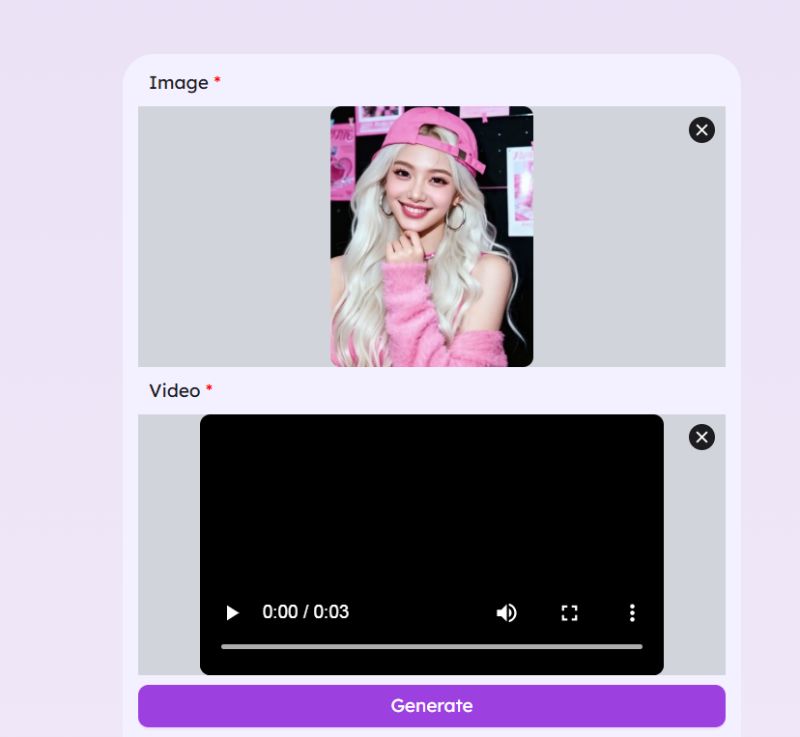
Step 3: Upload the replacement face
Select a clear portrait showing the entire face. Avoid sunglasses, strong shadows, hair covering the eyes or a very different camera angle.
Step 4: Generate the video
Select Generate and wait for processing to finish. Generation time is not guaranteed and may vary with video length and demand.
Step 5: Review before downloading
Watch the full result. Look closely at scene changes, side angles, the mouth, hairline and frames where an object crosses the face. If the swap breaks, try a clearer portrait or a simpler clip.
Step 6: Download and label the edited media
Download the result if it is usable. When sharing a realistic face swap, disclose that the video has been digitally altered. Do not present it as evidence of something that actually happened.
Screenshot note for the editor: Replace the old single image with original screenshots of the upload screen, generation screen and finished result. Add captions stating that the interface was checked on September 9, 2026.
2. Pica AI: Useful for Multiple Faces
Pica AI supports face swapping in photos and videos. Its official page says users can replace up to three faces in one photo or video and download the finished video as an MP4 or GIF.
That makes it worth considering for group clips. Pica also says uploaded media is deleted within 24 hours. Treat this as the company’s stated policy, not an independent security guarantee, and avoid uploading sensitive material.
Pros
- Supports photos and videos
- Can handle multiple faces
- Simple browser-based process
- Provider publishes a 24-hour deletion statement
Cons
- Free credits and export conditions may change
- Multi-face processing gives the system more chances to make errors
- Results still depend on pose, lighting and visibility
3. Magic Hour: Clear Limits for Short Tests
Magic Hour is helpful when you want to understand the free restrictions before uploading. Its official page currently states that free video swaps can be up to 10 seconds long, process at 480p and may take up to 30 seconds. Free video and GIF exports include a watermark.
Pros
- Clearly published free-tier limits
- Suitable for short experiments
- Works online and supports common video formats
- Separate multiple-face video tool is available
Cons
- Free videos contain a watermark
- Free output is limited to 480p
- Ten seconds may be too short for many projects
- Higher quality and longer clips require a paid plan
4. Vidnoz: Part of a Larger AI Video Platform
Vidnoz Face Swap sits inside a broader platform for AI avatars, voices and video creation. This can be useful if face swapping is only one step in a larger content workflow.
Vidnoz offers free access, but its tools use credits and reserve some benefits—such as faster generation, HD quality and no-watermark output—for upgraded access. Check the live generation screen because the allowance applied to a particular face-swap job may differ from the general video plan.
Pros
- Face swapping, avatars and other video tools in one platform
- Photo, video and multiple-face options
- Free plan available
Cons
- Credit rules can be confusing for a first-time user
- Export quality and watermark conditions can depend on the plan
- Broader interface may feel less focused than a single-purpose tool
5. Picsi.Ai: Better Suited to Controlled Face Targeting
Picsi.Ai offers image, video and GIF face swapping through its Studio. It advertises precision targeting and supports multiple faces, although multi-face video swapping is identified as a paid feature.
This option may appeal to users who need to specify which person should be replaced in a crowded scene. Beginners who only want one simple swap may find EaseMate or Magic Hour easier to test first.
Pros
- Image, GIF and video modes
- Tools for targeting particular faces
- Multi-face capabilities for more complicated projects
Cons
- Some important video features require payment
- Advanced controls may be unnecessary for a basic swap
- Current credits and export rules should be checked inside the Studio
Which AI Face Swap Video Maker Should You Choose?
Choose according to your actual task rather than accepting one universal “best” label.
- Choose EaseMate AI if you want a simple first attempt and a provider-promised watermark-free download.
- Choose Pica AI if the video contains more than one face.
- Choose Magic Hour if you want transparent limits and only need a very short test.
- Choose Vidnoz if you also plan to use avatars, voices or other AI video features.
- Choose Picsi.Ai if precise face selection matters more than having the simplest interface.
Before paying, process the same five-to-ten-second clip in at least two tools. Compare facial consistency, mouth movement, side angles, resolution, processing time and the final watermark.
Are Free AI Face Swap Tools Really Free?
Usually, they are free to try rather than free without limits. A platform may restrict:
- The number of daily generations
- Available credits
- Clip length or file size
- Output resolution
- Processing speed
- Watermark removal
- Commercial usage rights
- Storage time
Never promise readers that a tool is completely free unless you have confirmed that the complete workflow—from upload through download—has no credit, account, resolution or watermark restriction. Pricing models change frequently.
Privacy and Safety Risks
A face is biometric information, and a convincing face swap can affect more than the person who creates it. The main risks include:
- Lack of consent: Using another person’s face without permission can violate their privacy and dignity.
- Fraud and impersonation: A fake video can be used to mislead relatives, customers or employers.
- Reputation damage: Manipulated footage may falsely place someone in an embarrassing or harmful situation.
- Misinformation: Realistic deepfakes can make invented events appear genuine.
- Data exposure: Uploaded photos and videos must be processed by the provider and may be retained for a period of time.
- Copyright problems: Owning a face photograph does not automatically give you permission to reuse the underlying movie, music or social media clip.
Provider statements such as “secure,” “private” or “automatically deleted” should be attributed to the provider. They should not be treated as proof that uploading highly sensitive personal material is risk-free.
How to Use a Face Swapper Responsibly
Follow these practices before creating or publishing an AI face swap video:
- Get explicit permission from every identifiable person whose face you use.
- Use video footage that you own or have permission to edit.
- Do not impersonate someone for financial, political, sexual or reputational purposes.
- Clearly label realistic output as AI-generated or digitally altered.
- Avoid uploading children’s images or confidential personal footage.
- Read the tool’s privacy, retention and commercial-use terms.
- Delete projects and uploaded files from your account when they are no longer needed.
- Keep evidence of consent if the video will be used commercially.
Legal requirements differ by location and situation. This section offers general safety information, not legal advice. For a commercial campaign or a realistic depiction of a public figure, obtain qualified legal guidance.
Frequently Asked Questions
What is the best free AI face swap video generator for beginners?
EaseMate AI is one of the simplest options to try because its workflow requires only a face photo and a video. Magic Hour is another practical test option because it clearly publishes its free limits. The best result depends on your footage, so compare a short sample before committing.
Can I make an AI face swap video without a watermark?
Yes, some providers advertise watermark-free results. EaseMate currently says its face-swap downloads do not contain a watermark. Magic Hour, by comparison, places a watermark on free video and GIF output. Always check the preview and export conditions because these rules can change.
Do I need video-editing experience?
No. Most online face swappers automate detection, mapping and rendering. Basic editing knowledge can still help you trim the clip, improve lighting and remove unsuccessful frames.
Why does my face swap look unnatural?
The most common causes are a blurry source photo, side-facing angles, fast movement, inconsistent lighting or objects covering the face. Try a sharper front-facing portrait and a shorter, simpler video.
Is it legal to put someone’s face in a video?
It depends on consent, the intended use, local law and whether you have rights to the source footage. Permission and clear disclosure are the safest starting points. Do not use face swapping to deceive, defame or impersonate someone.
Are uploaded photos deleted automatically?
Policies differ. EaseMate says uploads are deleted automatically after a short period, while Pica AI says uploaded media is deleted within 24 hours. Review the current privacy policy yourself and avoid uploading sensitive content solely because a marketing page describes the service as secure.
Final Verdict
The best free AI face swap video generator is the one that produces a stable result from your footage while giving you acceptable privacy, resolution and usage terms. EaseMate AI is an accessible starting point for beginners, but its free access relies on registration and credits. It should therefore be described as free to try rather than unlimited.
Pica AI is worth considering for multiple faces, Magic Hour is transparent about its short free-video limits, and Vidnoz or Picsi.Ai may suit more involved AI video workflows. Whichever tool you choose, begin with a short test, verify the current download restrictions and use only faces and footage you have permission to edit.
Face swapping is one example of the expanding range of generative AI tools available to everyday users. When TheITbase’s Generative AI pillar is published, link that phrase to the pillar page.


How Cultural Organisations Can Build a Useful Guest-Publishing Strategy
Guest publishing can help a cultural organisation reach people beyond its own website, but the value depends on more than…

Using Nano Banana: When to Generate, Edit, or Remove a Background
Imagine preparing three images for a shop that sells desk lamps: a reading-corner illustration for its blog, a product photograph…