

Whether you are a student, a design professional, a lawyer, a teacher, or any other professional in the corporate world, this is a no-brainer: PDFs drive your professional life. Starting with contracts and reports to presentations, research papers, and even invoices a way, everything goes through a PDF. This becomes even more prevalent as businesses begin their transition toward digital management flow.
That is where PDF annotator software comes in. Good PDF annotator software will help you annotate a PDF document while offering more functions to edit, collaborate, and organize comments. Therefore, in this guide, we have highlighted the best PDF annotation software that every professional needs.
Why You Need a Powerful PDF Annotation App
Before continuing with this, it is important that we are aware of a cause for annotation:
- With this tool, you will be able to scan through
- To facilitate working in groups effectively,
- Reduces the costs of printing and manual corrections
- To facilitate traceability and electronic record preservation for all types of feedback.
- Maintains a clean, organized, and editable professional document
The process of PDF document editing, regardless of Windows software vs. cross-platform software, eats into your precious time every week.
1. Systweak PDF Editor
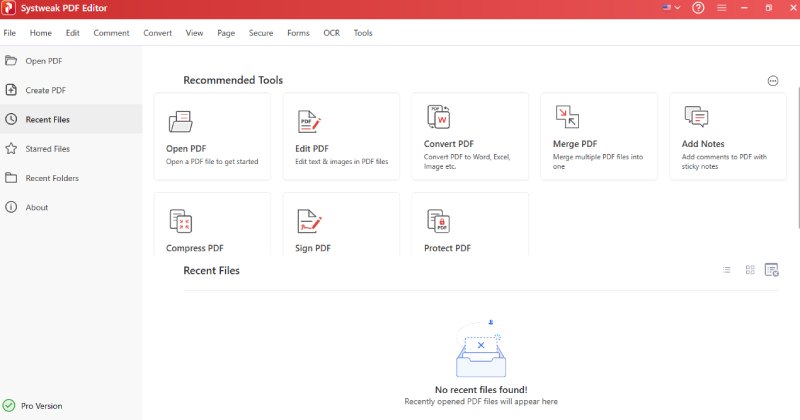
Systweak PDF Editor is a very comprehensive software for editing PDF files, especially when you are looking for a clean, fast, and reliable way of annotating PDFs on Windows. The software has a relatively intuitive interface with annotations easy to access.
Get the ultimate editing experience with Systweak PDF Editor Pro (Lifetime Plan).
Key Features:
- Highlight, underline, and strike through
- Insert shapes, arrows, and text boxes
- Edit multiple PDFs at once and perform OCR
- Add Text fields, Combo Box, List Box, Check Box, Radio button, Signature Field
- Insert stamps, comments, sticky notes, Watermarks, and sign PDF
- Edit, merge, compress, repair, and convert PDF files
- Use password protection for documents
Why is it perfect for Professionals?
It’s lightweight and powerful, enabling you to work with large PDFs seamlessly. Additionally, it comes with a complete PDF editing feature, which means you don’t require different software for editing and annotations.
2. Adobe Acrobat Reader DC
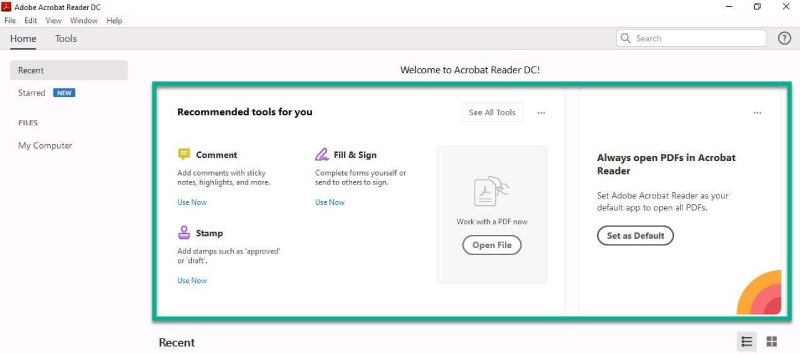
Well, yes, Adobe Acrobat does get set as a predefined option for some because it’s stable and on almost every computer in the first place. Adobe Acrobat also has good annotation tools within its free variant.
Key Features:
- Emphasized items, underlined text, strike-through text mark-ups
- Comment sticky notes
- Drawing and marking tools
- Review and share seamlessly
Why does it work?
Maintains picture and file quality and enjoys high credibility with all business enterprises across the global arena.
3. Foxit PDF Reader
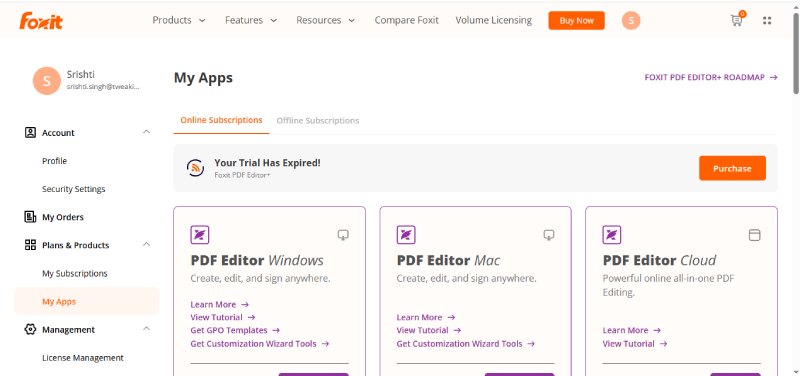
Creating annotations with Foxit PDF Reader is so smooth and so interactive. It would be perfect if you have large PDFs, or even if you’re just looking for something better and lighter than Adobe.
Key Features:
- Drawing tools and callouts
- Highlighters and Text Markups
- Cloud Collaboration
- Tools for Tracking Comments
Who It’s For:
Those people who are taking down notes or reviewing documents frequently.
4. Xodo PDF Reader & Editor
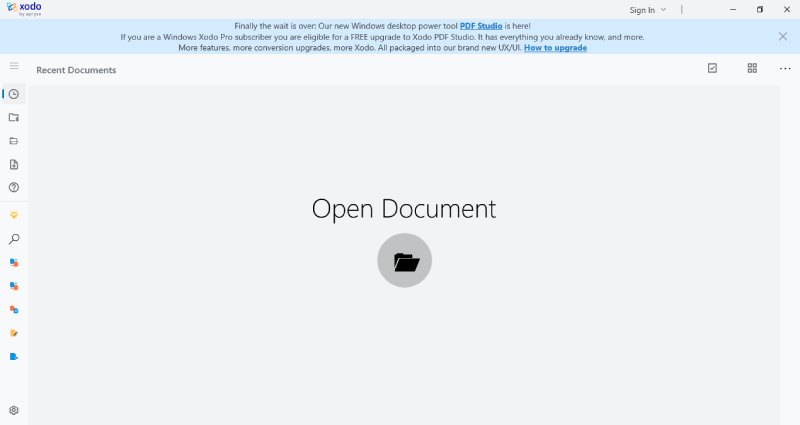
Xodo is popular among Android and Windows users and even online visitors because it is totally free and full of features.
Key Features:
- Light markup and drawing toolset
- Annotating with perfectly shaped tools
- Real-time collaboration
- Synchronization with Cloud Drive and Dropbox
Why It Stands Out?
Other textbooks Some You start annotating on your mobile device, you continue with your laptop computer, and finish on the internet. All updates are up-to-date.
5. PDF-XChange Editor
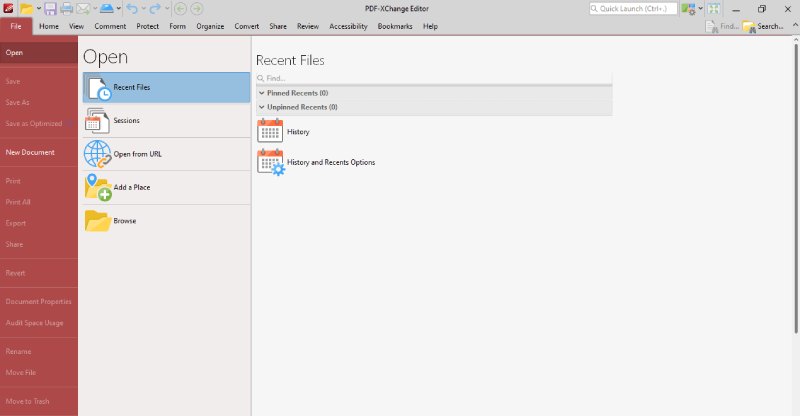
PDF XChange Editor is particularly famous because it is packed with a variety of annotation tools.
Key Features:
- Customized stamps
- Strong markup capabilities
- OCR scanning function for documents.
- Typewriter mode
Who Should Use It?
Legal, academic, or business correspondents are the kind in which a lot of detail is involved.
6. Drawboard PDF
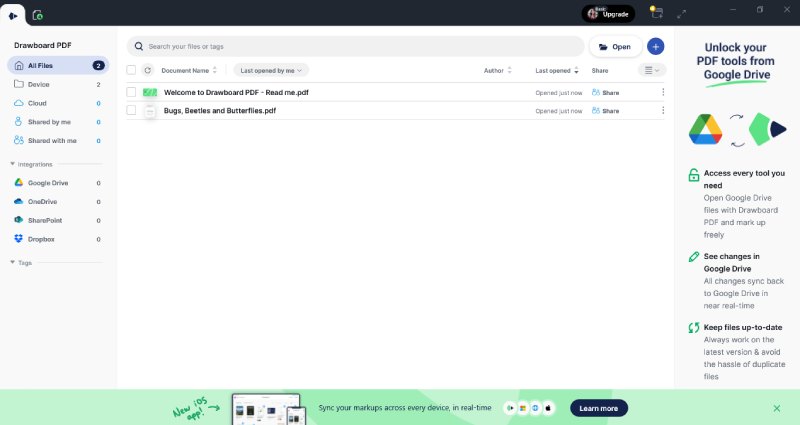
Drawboard PDF is a product of preference for people using a Surface laptop computer and any Windows device with which a stylus can be used.
Key Features:
- Smooth, natural ink
- Sticky Notes & Markup Tools
- Customizable workspace
- Page manipulation options
Best Suited For:
Architects, Designers, Engineers, and students who want hand-drawn annotations.
7. Nitro PDF Pro
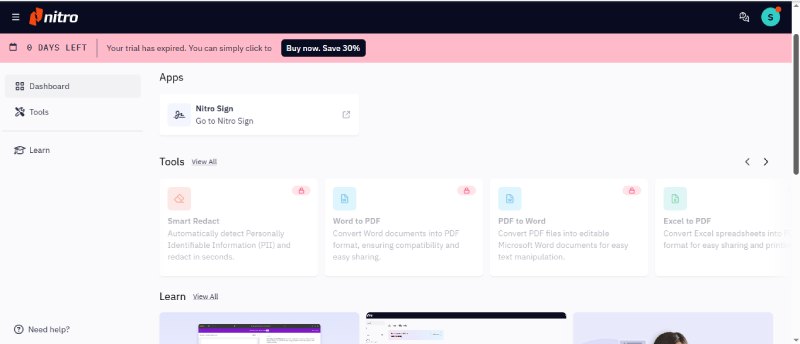
Nitro is very professional and offers a good level of functionality to make it a worthwhile tool for a team in an office environment.
Key Features:
- Text markups and comments
- Review monitoring
- Sharing in the cloud
- Secure document workflows
Why Teams Use It:
Can easily handle huge files without any issues. Besides, it supports all kinds of systems.
8. Wondershare PDFelement
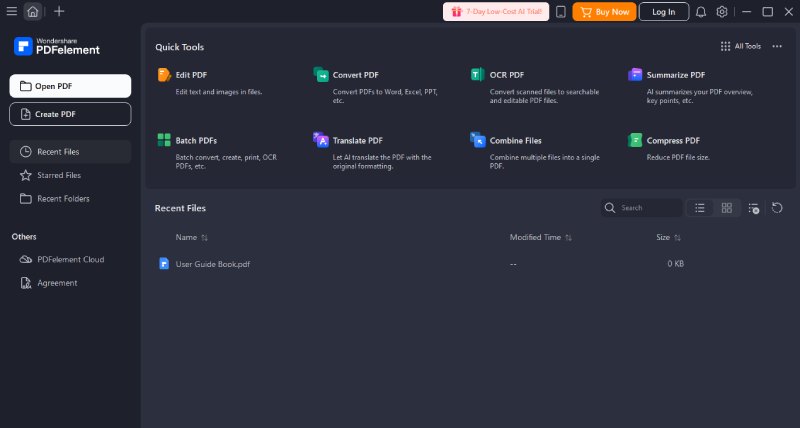
Wondershare PDFelement is a highly sought-after software that can combine PDF editing and PDF annotation processes in a fully integrated workspace environment, and it is preferred by many businesspeople and teachers.
Key Features:
- Highlight, Underline, and Strikethrough
- Stapled notes or text boxes, Call-outs
- Drawing and shape tools
- Comment Management Panel
Who It’s For:
People associated with technological and professional domains. Looking for software that supports the annotation and editing of PDFs within a single application,
9. Sejda PDF Editor
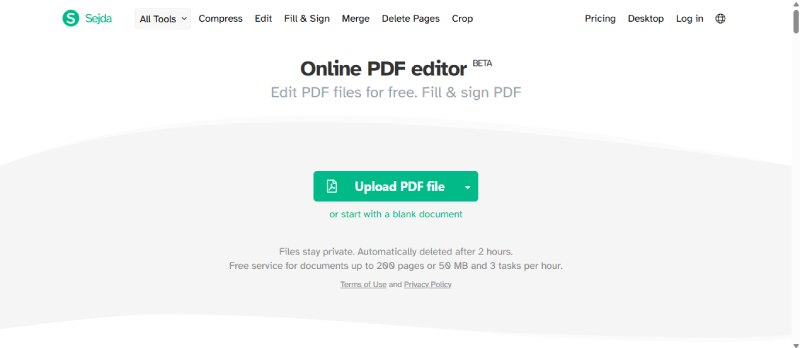
Sejda has received praise for having a very simple and clean-looking interface. Sejda is available in two versions: online software and PC software.
Key Features:
- Highlighting and comments on text
- Shapes, Links, and Notes
- Quick Edits Without Complexity
- Suitable for small and medium-scale PDF files
Best For:
Those who wish to easily annotate PDF files without having to familiarize themselves with complex software and related tasks.
10. Kami PDF Editor
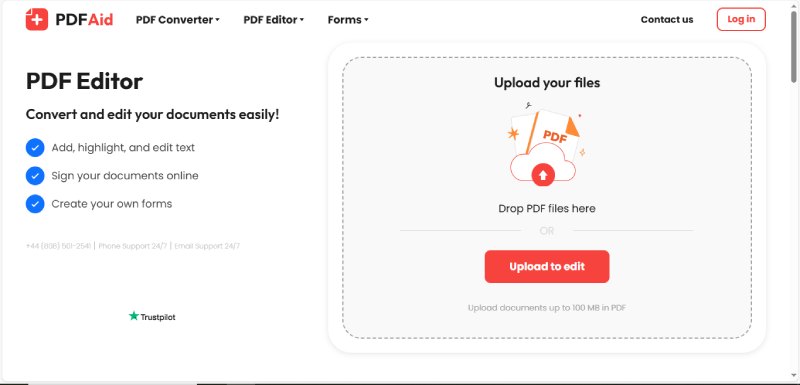
Kami PDF Editor is perfect for those who like working in a browser.
Key Features:
- Drawing, shapes, comments
- Audio and Video Feedback
- Collaboration tools
- Classroom-friendly
Who’s the User?
Teachers, trainers, and organizations presently on Google Workspace.
How to Choose the Right PDF Annotation Software
Before making a decision, you need to ask yourself:
- How often will you mark up PDF files?
Frequent users might need advanced analysis tools, while occasional or one-time users might need basic analysis tools.
- Offline or online annotation?
Stability is offered by Offline Tools, and Online Tools offer collaboration.
- Do you need stylus support?
Use Drawboard if you prefer taking notes in a written format.
- Would you like your work to be edited & annotated?
Select Systweak PDF Editor, Nitro, or PDF-XChange
- Do you work in a team?
Collaboration can be better accomplished with tools such as Xodo, Adobe, or Kami.
Final Words
It has quickly grown into an integral part of such a document workflow system, whether your task is this or that-error correction in texts, contract analysis, report interpretation, discussion of ideas, or research. A decent annotation tool in a PDF format will make life easier and your working space neater.
While comprehensive solutions exist, such as the Systweak PDF Editor, or lightweight ones like Foxit, browser add-ons such as Kami, focused on nothing but working with PDFs, are significantly more efficient at getting this done on Windows.
FAQs
Q1: What is the PDF Annotation Application?
Answer: It gives you the ability to highlight, annotate, or mark up PDF documents.
Q2: Which software do you recommend for PDF annotations?
Answer: This would depend on what you intend to do with your PDF editor, but Systweak PDF Editor and Adobe Acrobat are two popular ones.
Q3: Is it possible to create PDF annotations on the Windows operating system without using Adobe?
Answer: Yes, some applications that allow PDF annotations on the Windows operating system can be created without the use of Adobe.
Q4: Are PDF annotators useful in collaboration?
Answer: Yes, PDF annotators help collaborate with people for the purpose of accessing the PDF annotations.
Q5: Who uses the PDF annotator application?
Answer: The PDF annotator application may be used by professionals, lecturers, and students.


How Cultural Organisations Can Build a Useful Guest-Publishing Strategy
Guest publishing can help a cultural organisation reach people beyond its own website, but the value depends on more than…

Using Nano Banana: When to Generate, Edit, or Remove a Background
Imagine preparing three images for a shop that sells desk lamps: a reading-corner illustration for its blog, a product photograph…