

Quick, honest question. You plug an ethernet cable into your router, you see your laptop, your printer, and a “WAN” port glowing a different color, and you’re just supposed to know what all of it means? Nah. Nobody wakes up knowing this stuff. I had to google half of it when I first set up a home office, and I bet you’ve had that same afternoon of staring at the back of a box.
So let’s grab a coffee and untangle it. LAN vs WAN, what the ports actually do, why one is colored differently than the other, and where Ethernet cables, fibre, and switches fit into the whole mess. By the end, you’ll know which port to plug what into, and which cable to buy next time you’re staring at a wall of options on Amazon.
What is LAN, really? (and the WAN meaning, in plain English)
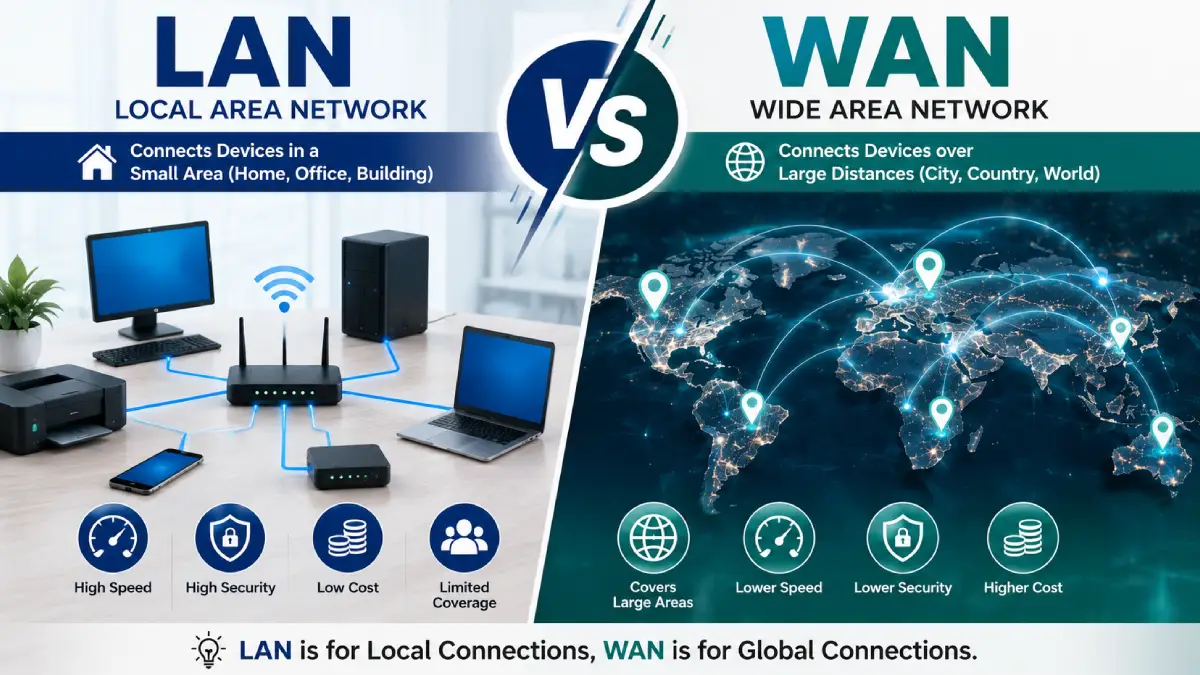
LAN stands for Local Area Network. That’s the small network inside your house, office, or building. Your laptop, phone, smart TV, printer, and PlayStation. They all talk to each other through your router, and most of the time, they do that over Wi-Fi or through Ethernet cable ports on the back of your router.
WAN stands for Wide Area Network. The WAN meaning is the big network that connects LANs to each other across cities, countries, or oceans. The Internet is the most famous WAN. When your home router says “WAN,” it means the uplink port – the one that talks to your internet provider (the modem, the fiber box on the wall, whatever your ISP gave you).
So the simplest way I explain it to friends: a LAN is your living room. A WAN is the road to everyone else’s living rooms. That’s it.
A quick sketch so it sticks
| Network | What it’s for | Geographic reach | Real-world example |
| LAN (Local Area Network) | Connects devices inside one place | Single room to one building | Your home Wi-Fi |
| WAN (Wide Area Network) | Connects multiple LANs together | City, country, planet | The internet, a corporate MPLS link |
LAN vs WAN: the real differences that actually matter
You don’t need ten bullet points. You need the four that come up in real life.
- – LANs are faster. Because the cables are short, the signals stay strong, and you usually get gigabit or multi-gig speeds. WANs are slower, partly because the data has to travel way further and partly because your ISP is the bottleneck.
- – LANs are yours. You buy the router. WANs are usually rented – your ISP provides them.
- – A LAN is naturally isolated. A WAN is exposed to the entire internet, so it needs firewalls, encryption, the works.
- – LAN gear is cheap. A $30 router, a $10 switch, a $7 cable. WAN links cost real money because they involve carriers and long-haul fiber or leased lines.
LANs also tend to be way less congested. Your ten devices are sharing one nice fast pipe. A WAN might be serving thousands of users in your area all at once, especially cable or DSL.
LAN vs WAN port: why one port is a different color (and you should care)
This is the part that confused me for years, so I promise to keep it simple.
Look at the back of your home router. You’ll see a bunch of ports. Most are grouped and almost all of the same color – those are the LAN port jacks. Plug your PC, your gaming console, or a network switch into any of those. They’ll each get an IP and start talking to the rest of your stuff.
Then there’s the odd one out. Usually it’s a different color, or it’s labeled “Internet” or “WAN.” That’s the WAN port. You plug the cable coming from your modem or fiber box into this one port. It is the door between your LAN and the WAN. If you ever wonder “why won’t my internet work after I rearranged things,” you almost certainly swapped these two. We have all done it. I have done it twice this year.
A few useful rules about WAN vs LAN ports
- – The WAN port is almost always a single dedicated jack on a home router. Most home routers have one WAN port and four LAN ports, give or take.
- – The LAN ports are interchangeable. It does not matter which one you use for which device.
- – A network switch only has LAN ports. It is built to expand your LAN, not to talk to the internet on its own. This answers ‘what is a switch in networking’ in the most practical sense: it’s a box of LAN-only ports that joins more wired devices to your LAN.
That last one trips people up. People see a switch on sale for $20, take it home, plug the internet into it, and wonder why nothing works. The switch is great at expanding a LAN. It needs a router to reach the WAN.
What is a Switch in Networking? (and why it isn’t a router)
If you’ve ever set up a home office with an extra PC, a NAS, a printer, and a console all competing for the four ports on your router, you needed a switch without knowing it.
A switch in networking is a device with multiple LAN ports that forwards traffic to the right device on your LAN. When your laptop wants to talk to your printer, the switch looks at the destination, finds the printer’s port, and sends the packet there. Other devices don’t see it. That’s why networks are fast even when lots of devices are chatting.
A router has one WAN port and a few LAN ports. Its job is to route traffic between your LAN and the WAN – basically, it decides which traffic is local and which traffic goes out to the internet.
A hub, an older device, just blasts every packet to every port. That is why hubs died. Switches are smarter, quieter, cheaper, and now standard.
So:
- – Switch = more LAN ports. Local.
- – Router = bridge between LAN and WAN. Traffic cop.
- – Modem or fiber ONT = the box that connects your home to your ISP’s WAN. It is not in your LAN, technically. It just gives you a pipe.
And yeah, modern “routers” from your ISP usually are a router + switch + Wi-Fi access point all crammed into one plastic box. That’s why this gets confusing.
Ethernet Cable: What to actually buy (without overthinking)
Here’s where most people either overthink or underthink. You walk into a store and see Cat5e, Cat6, Cat6a, Cat7, Cat8. The packaging screams “10 GIGABIT GAMING CABLE” with dragon art on it. Take a breath.
Ethernet cable categories, plain
| Category | Max speed | Max bandwidth | Best use |
| Cat5e | 1 Gbps | 100 MHz | Most homes, gigabit internet |
| Cat6 | 1 Gbps (10 Gbps up to 55 m) |
250 MHz | Future-proofing for gigabit and short 10G runs |
| Cat6a | 10 Gbps | 500 MHz | Offices, NAS, serious home networks |
| Cat7 | 10 Gbps | 600 MHz | Shielded runs in noisy environments |
| Cat8 | 25-40 Gbps | 2000 MHz | Data centers, short server-room patches |
For 99% of homes, Cat6 is the sweet spot. It handles gigabit internet from your ISP with room to spare, and it’ll handle 10 Gbps if you ever upgrade your internal network for a NAS or faster PC connection. Cat5e still works fine, but new builds should run Cat6. Cat7 and Cat8 mostly aren’t worth it unless you have a very specific reason.
If your PC is acting weird and you suspect drivers rather than cables, sometimes the bottleneck is just wrong or outdated drivers. I once fixed my own sluggish desktop with a quick run of Driver Booster (theitbase review) – so don’t blame the cable first when a simple reboot and driver refresh can solve a lot of weird behavior.
One more thing: a cable is only as good as its connector and crimp. A poorly made Cat8 is worse than a well-built Cat6. Buy from a reputable brand, don’t coil cables too tightly, and avoid running them parallel to power lines where possible.
Fiber Optic Cables: when you actually want fiber
Copper ethernet is great up to about 100 meters. After that, signal gets noisy. And the more noise, the slower you go.
Fiber optic cables send data as pulses of light through glass strands. They’re not affected by electromagnetic noise. They run for kilometers without losing signal. Speeds commonly hit 10 Gbps, 40 Gbps, 100 Gbps, and beyond – much higher than copper can sustain the same distance.
That’s why your ISP doesn’t run copper from their central office to your house when they can. They run fiber optic cables. And once fiber hits your home (often called “FTTH” or fiber-to-the-home), an ONT box converts the light signal into an ethernet signal your router can use. From there, ethernet cable takes over inside your home.
You don’t need fiber inside your house unless you have a really good reason – like running 10 Gbps between two rooms, an attic-to-basement link, or a long driveway to a detached office. For most people, Cat6 from the wall to the router to the PC is plenty.
WAN definition, the network-engineer edition (for the curious)
If I had to write a textbook answer: a WAN is a telecommunications network that spans a large geographic area, often using leased lines, MPLS, VPNs, or public internet infrastructure, that connects multiple LANs, MANs, or other WANs.
That’s the formal WAN definition. It usually mentions terms like:
- – MPLS – a private, carrier-managed WAN used by enterprises.
- – VPN – a secure tunnel across the public internet acting like a private WAN.
- – Leased line – a dedicated point-to-point line between two sites.
- – SD-WAN – a software-managed overlay that picks the best path across multiple WAN links.
You don’t need to memorize any of this. But if someone in IT says “we’re deploying SD-WAN,” they’re talking about WAN-level stuff – not your home LAN.
Quick recap (because we’ve covered a lot)
- – LAN = your private network. Fast, cheap, owned by you.
- – WAN = the outside world, often the internet. Slower, costlier, provided by an ISP.
- – WAN port = the one special port on your router that connects to the WAN.
- – LAN port = every other port on your router, used for devices.
- – Switch = a box of extra LAN ports. Local only.
- – Ethernet cable = Cat5e for most, Cat6 for new installs, Cat7/Cat8 rarely.
- – Fiber optic cables = glass, light, long distances, big speeds.
If you’ve been struggling to draw a clean picture of all this in your head, the simplest mental model is still the living room: a LAN is your house, a WAN is the road, your router is the front door, and an Ethernet cable is just the hallway inside.
And while we’re talking tidy setups, if your desktop software is half your problem, a tool like Desktop can clean up a chaotic workspace so the only thing competing for your attention is your actual work – not 400 random icons.
FAQ: the questions people actually search
Is the internet considered a WAN?
Yes. The internet is the largest public WAN in existence. Your home LAN is one tiny leaf of that tree.
Can a LAN become a WAN?
Once LANs are linked across cities or large distances, you’re essentially building a WAN. There’s no magic threshold – it’s more of a scope thing. A campus with multiple buildings can still be considered a massive LAN. As soon as you leave that campus, it’s WAN territory.
Do I need a WAN port on my router?
If you want internet from your ISP, yes. Every consumer router has exactly one. If your router doesn’t have one (or your ISP gives you a combined gateway), you actually only have a router with LAN ports talking to a built-in modem inside the same box.
Which Ethernet cable should I actually buy?
Cat6 for new installs. Cat5e if you already have Cat5e cables and they’re fine. Skip Cat7 and Cat8 unless you have a specific reason – they’re often more expensive without much real-world payback.
Is fibre optic better than Ethernet?
Different tools. Fiber wins on distance, noise immunity, and raw speed for long runs. An Ethernet cable is cheaper, more flexible, and good enough for almost every home or office link under 100 m.
Can a switch replace a router?
No. A switch only knows about your LAN. A router knows how to talk to other networks, including the WAN. If a friend tells you their “router” is actually a switch and they wonder why their internet is acting weird, this is why.
If you’re trying to design or fix a small network – or even just a website that performs well on top of one – I’d also bookmark this practical guide on designing a website from scratch. Networking and web setup feel like very different worlds, but the trade-offs are the same: pick the right cable, the right port, the right tool, and stop overpaying for fancy spec sheets that don’t move the needle.
So next time you look at the back of your router and wonder which port to plug into, you know: the colored, lonely one is the WAN port (it talks to the internet), and the group of matching LAN ports is where everything else goes. Pick the right ethernet cable for your speed, and you’ll be set. Maybe one day you’ll even run fiber optic cables to a garage office. Until then, Cat6 in the wall is plenty.
That, in a nutshell, is LAN vs WAN – your LAN is your home, your WAN is the driveway to the rest of the world, and the right cable ties it all together.


Fewer Tabs, Fresher Adverts: What Job Posting APIs Mean for UK Recruitment Teams
Ask any in-house recruiter or agency consultant in the UK where their week goes, and a surprising share of the…

How AI Image Generation Is Changing the Way We Create Visual Content
Creating high-quality images used to require a combination of design skills, expensive software, photography equipment, and plenty of time. Today,…