

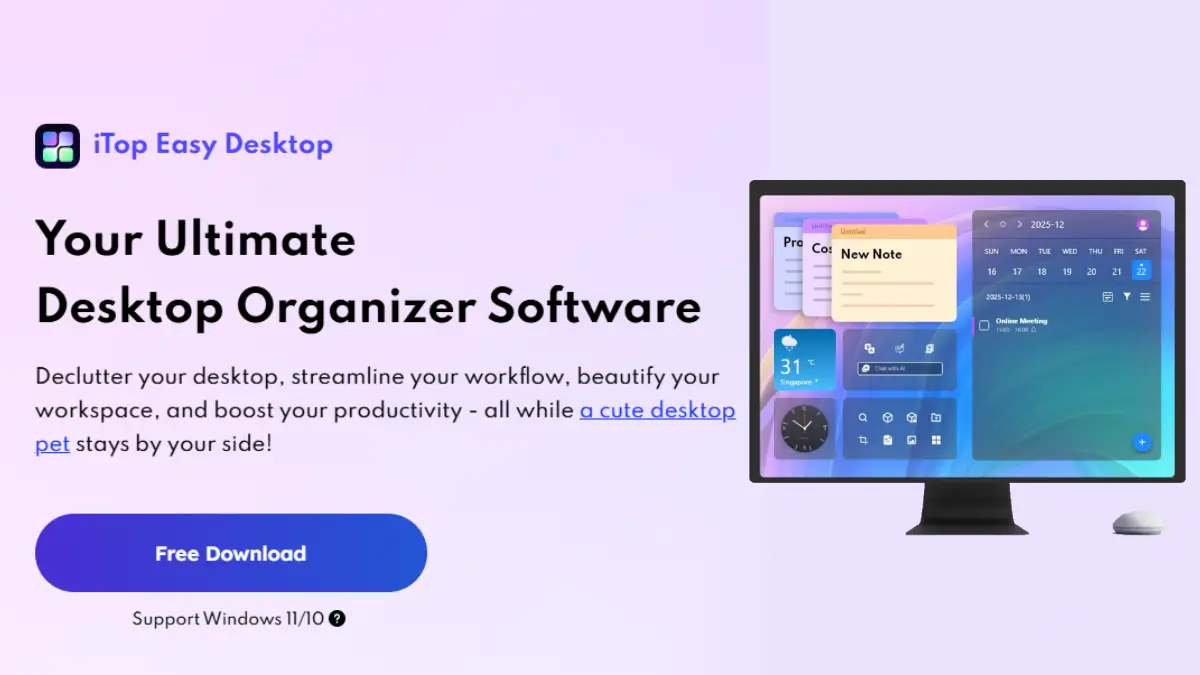
For years, my Windows desktop looked like a junk drawer. Every screenshot, download, and “Ok, I’ll deal with this later” file ended up on the screen. I wasted minutes each day hunting for documents I’d just saved and hiding windows so I could find apps buried under icons. I reached a point where the clutter felt louder than my work.
That is when I installed iTop Easy Desktop, a powerful organizer software, and it genuinely changed how I use my PC. Instead of fighting with icons, I finally focus on what actually matters.
What is iTop Easy Desktop
iTop Easy Desktop is a desktop manager for Windows 10 and 11 which turns a messy desktop into an organized, customizable workspace. This tool groups icons into Boxes and lets me hide everything with a double click, gives me powerful search and widgets, and adds an AI Assistant that lives on my screen.
Instead of the default Windows layout, I now have a desktop that feels more like a control panel built for me. Now help to clear sections for different kinds of work, wallpapers, and tools that help me stay focused instead of distracted.
The Features That I Loved the Most:
1. Boxes
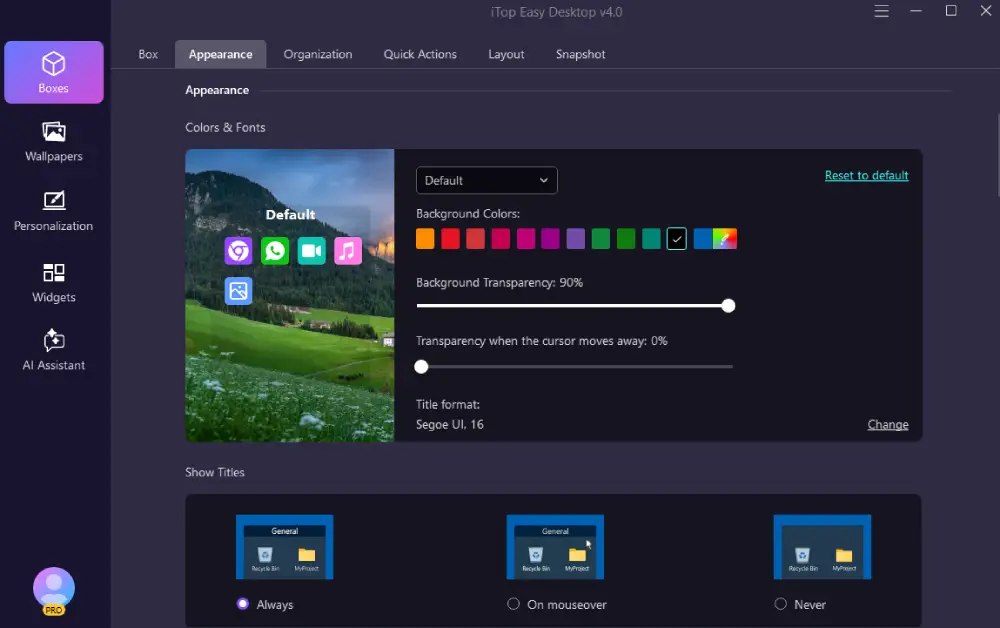
The biggest shift happened when I started using Boxes. This lets me turn clusters of icons into labeled containers like Program, Files & Documents, Folder, Urgent, etc. Also I can add my own Boxes when I need new categories.
Now, my apps, documents, and project folders live in their own “homes” instead of sitting in one huge pile. What I love most is Box Rules. I set rules for file types so new icons are automatically sorted into the right Box the moment they appear. Downloads I drop on the desktop no longer vanish into chaos they slide into the correct group without me dragging anything.
2. Quick Actions of Double click and the clutter disappears
Another small but powerful feature is Quick Actions. With iTop Easy Desktop, I can hide or show all desktop icons by double-clicking a blank area. When I need full focus, I double-click and get a clean background. When I want my Boxes back, I double-click again and everything reappears.
3. Layout and Snapshots
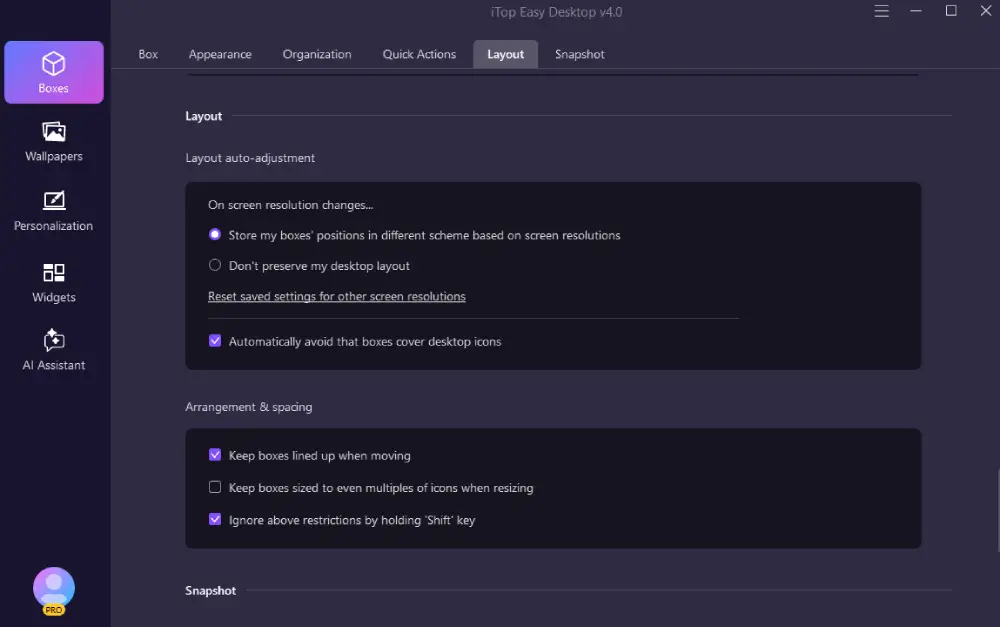
I often move between different monitors and resolutions which used to wreck my desktop layout. iTop Easy Desktop’s Layout options allow me to store box positions for each resolution and automatically prevent Boxes from covering icons.
On top of that, Snapshot serves as a backup system specifically for my layout. With one click, I can create a snapshot of my current desktop arrangement. iTop Easy Desktop also auto-creates snapshots when settings change. If something goes wrong, I restore a snapshot and my workspace snaps back to the way I like it.
4. Wallpapers and personalization
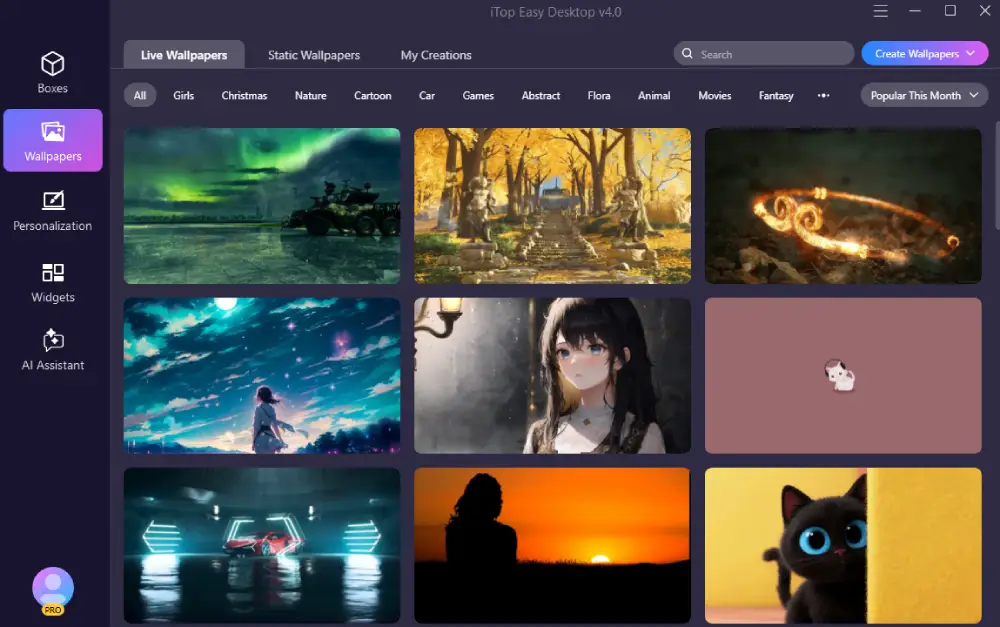
This tool gives me more control than Windows when it comes to personalization. I can choose between live and static wallpapers, also create my own by uploading images and videos. There are storage limits and auto-cleanup for local wallpapers to prevent the feature from quietly filling my disk.
On top of that I can change themes, taskbar style, start menu layout, desktop icons, and even mouse settings to match my taste. My desktop no longer feels generic. It looks like a space I actually want to spend time in.
The AI Assistant That Lives On My Desktop
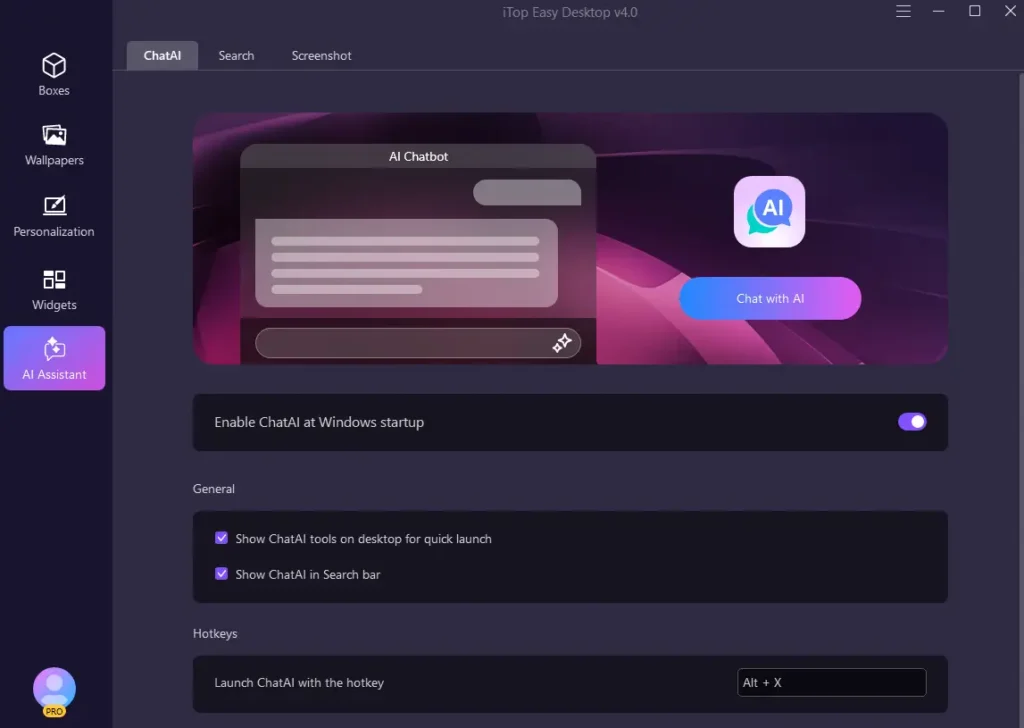
One of the most surprising parts of iTop Easy Desktop is its AI Assistant section. It includes PawPal, Search, ChatAI, and Screenshot tools.
PawPal is a little cute AI cat that wanders around my screen. She reacts when I move or click the mouse, pops up with gentle reminders, and lets me chat when I want a break. It sounds playful, but those small interactions keep me from doom‑scrolling or zoning out when I should refocus.
Search is a floating bar I can drag anywhere. With hotkeys, I can call it up instantly and jump to files or folders without clicking through layers of Explorer. Screenshot adds save location prompts and one click access to the screenshot folder, which is perfect when I create a lot of visual notes.
ChatAI is there when I need quick translations, code help, or summary of long text. Instead of opening a browser tab, I talk to the assistant directly from the desktop.
Powerful Widgets That Give me Peace of Mind
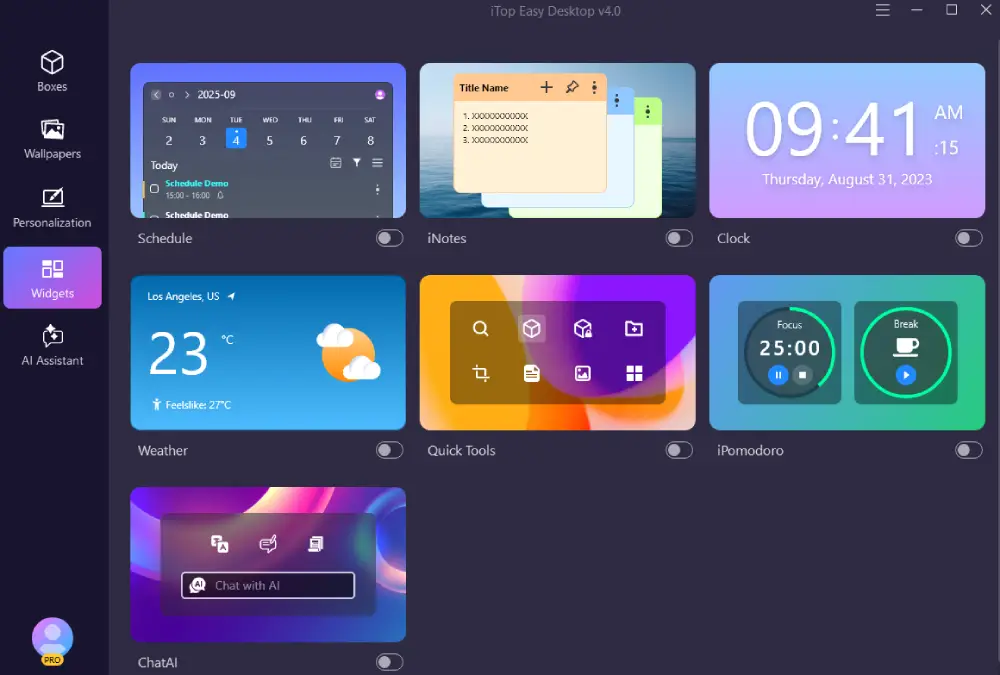
Widgets are my little productivity panel, i.e, iNotes for quick thoughts, Schedule for deadlines, and iPomodoro for deep work sessions. They sit neatly on the desktop rather than adding to the clutter, and keep me aligned with what I should be doing rather than wandering off.
Conclusion: How iTop Easy Desktop Changed The Way I Work
After using iTop Easy Desktop for a while, my desktop feels less like a battlefield and more like a dashboard.
- I spend less time hunting for files because Box Rules and Search bring things to me.
- I switch to “focus mode” with a double click, hiding icons when I’m writing or designing.
- My layout survives every monitor and resolution change thanks to Layout and Snapshots.
- The workspace looks like my style, with wallpapers and icon sets that match the way I think, not the default that came with Windows.
- PawPal, ChatAI and widgets add personality and utility without dragging me back into habits that cause clutter.
Most importantly, I no longer feel drained just looking at my screen. The chaos is gone, and what’s left is a space that makes it easier for me to focus on real work, real ideas, and the things that truly matter.


My Sluggish PC Finally Started Running Like New After Using Driver Booster
I’d gotten used to my PC feeling tired. Apps opened slowly, games took ages to load, and random stutters would…

A Practical Developer Workflow for Using AI-Generated 3D Assets in App Prototypes
Software teams can build an interface, connect an API, and test a user journey within days. The process becomes more…