

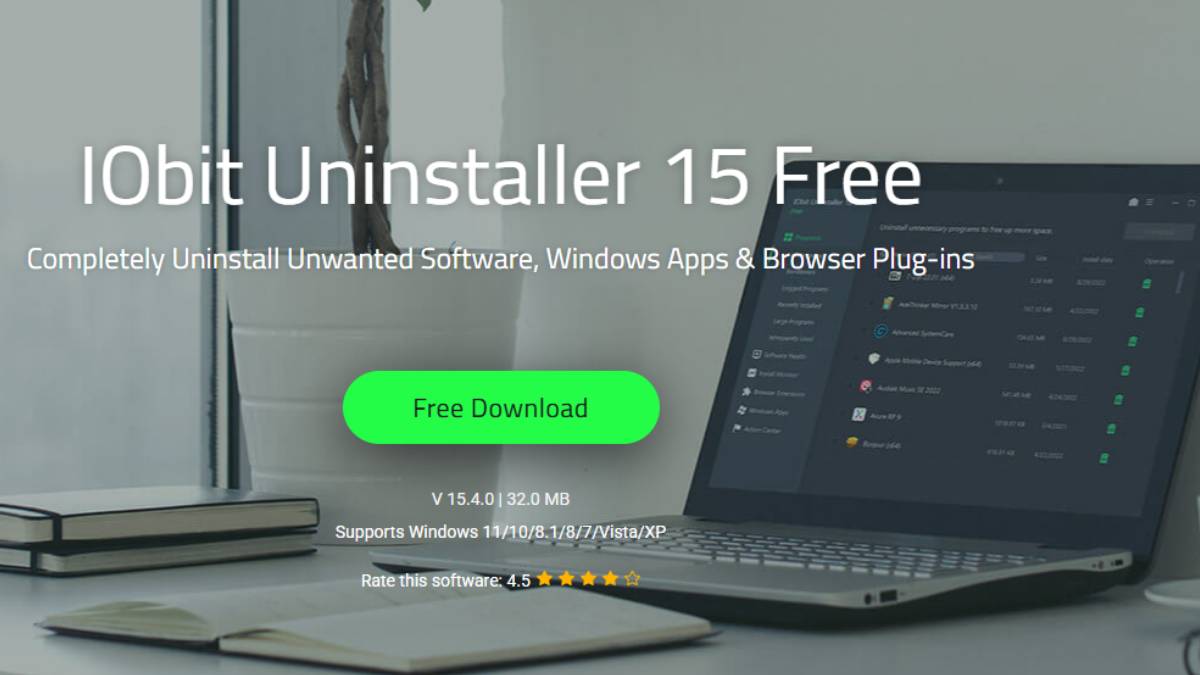
For a long time, I believed that uninstalling an application from Windows meant it was completely removed from my system. Like most users, I simply used the default uninstall option and assumed everything related to the software was gone. However, over time, my PC started showing signs of clutter. Storage space didn’t match the number of installed applications, and performance felt slightly inconsistent. This made me question whether the uninstalled software was truly being removed completely.
To investigate this properly, I decided to use IObit Uninstaller, a dedicated software removal tool designed to uninstall programs more thoroughly than the default Windows method. It is built to remove not only applications but also leftover files, folders, and system entries that usually remain behind. What I discovered completely changed my understanding of software uninstallation. I found leftover traces from an application I had removed almost a year ago — still sitting on my drive, wasting space without me ever knowing.
Why I Decided to Use IObit Uninstaller?
I frequently install different software for editing, productivity, and testing purposes. Over time, many of these applications are removed once they are no longer needed. However, I started noticing that even after uninstalling them, traces of those programs often remained on my system. While searching for a more complete solution, I came across one that is specifically designed to remove programs thoroughly and clean all related leftovers.
According to its official functionality, IObit Uninstaller focuses on:
- Completely uninstalling software applications
- Removing stubborn programs that cannot be deleted normally
- Cleaning leftover files, folders, and registry entries
- Managing Windows apps removal
- Removing browser extensions and plug-ins
- Supporting batch uninstall for multiple programs at once
- Monitoring software installations to track changes
What made me interested was its focus on deep and complete removal, not just basic uninstallation.
My First Experience with the Tool
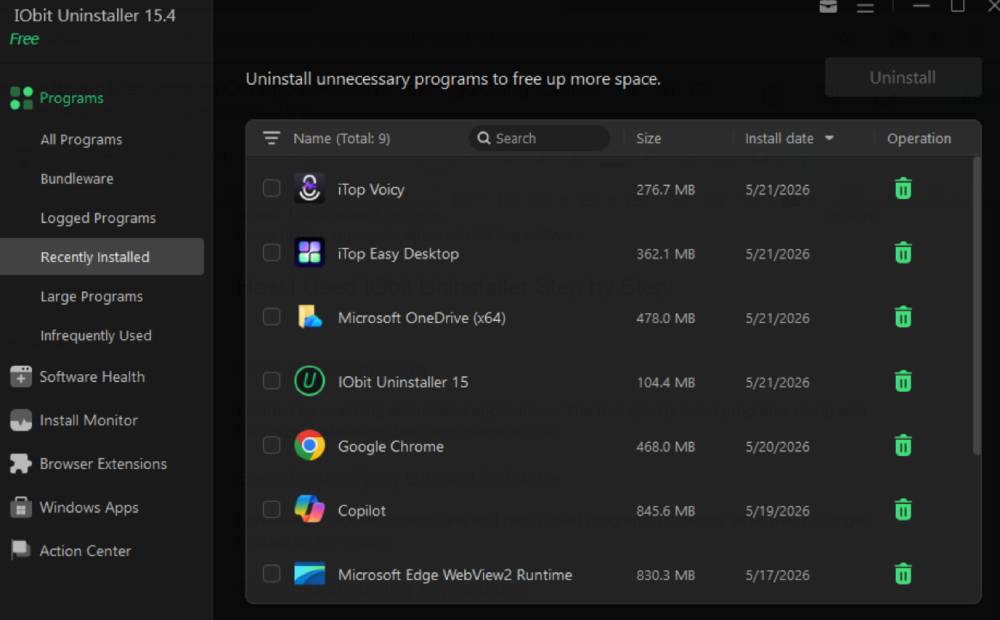
Clean and Structured Interface
After installation, I noticed the interface was simple and well-organized. The software grouped everything into categories such as installed programs, Windows apps, recently added applications, and browser extensions. This made navigation easy, even without technical knowledge. I could immediately see which programs were rarely used or taking up unnecessary space.
Clear Program Overview
The main dashboard displayed useful information such as installation date and program size. This helped me quickly identify old applications that I had completely forgotten about. Instead of manually searching through Windows settings, everything was available in one place.
The Unexpected Discovery of Old Leftover Files
Finding Traces from a Year-Old Application
During a full system scan, I discovered something unexpected. The software detected leftover files from an application I had uninstalled almost a year ago.
These leftovers included:
- Residual program folders
- Temporary system files
- Registry entries linked to the application
- Hidden configuration data fragments
What surprised me most was that these files were not visible in normal Windows file browsing.
Why do leftovers remain after uninstall?
From my experience, I realized that standard Windows uninstallation does not always remove all components of a program. Some files remain in hidden directories or system areas. This is where it becomes useful, as it performs deeper scanning to locate and remove these hidden remnants after uninstalling software.
How I Used IObit Uninstaller Step by Step:
Step 1: Check All Programs
I started by checking all installed applications. The tool quickly listed programs along with their size, installation date, and usage details.
Step 2: Identifying Unused Software
I reviewed Windows applications and rarely used programs to identify what was no longer needed on my system.
Step 3: Uninstalling Applications
I used the standard uninstall option for regular programs and forced uninstall for applications that were difficult to remove through normal methods.
Step 4: Leftover File Scan
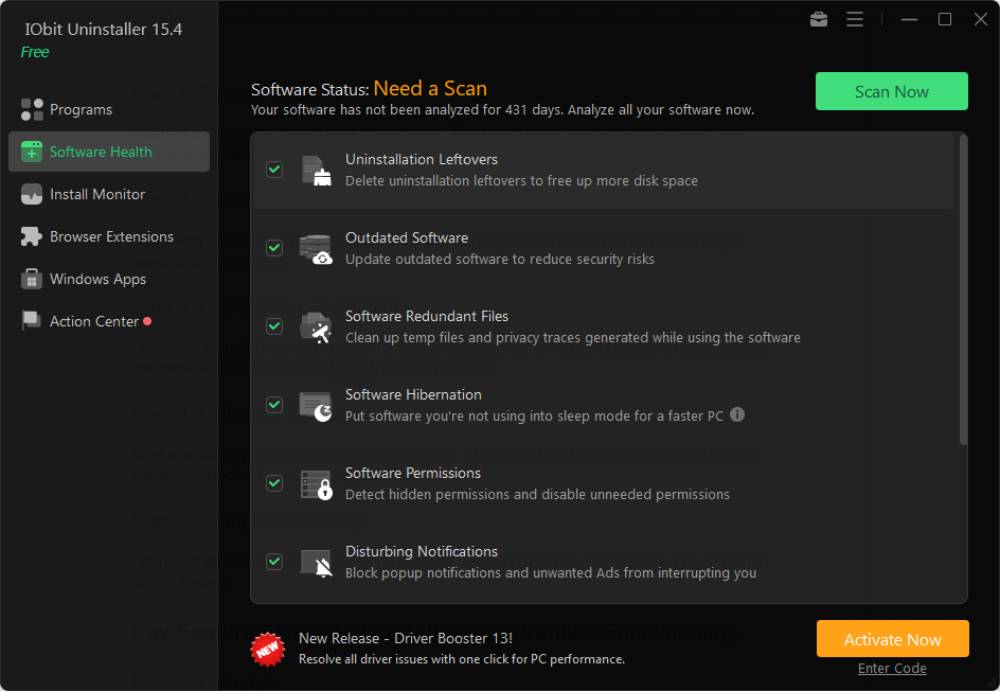
After uninstalling, I ran the leftover scan feature. This step detected hidden files and system entries connected to removed applications.
Step 5: Complete Cleanup
I removed all detected leftovers in one process, ensuring that no unnecessary data remained on the system.
Key Features That Made a Difference (Verified Functionality)
Forced Uninstall
This feature helped remove stubborn or partially broken programs by scanning and cleaning all related components.
Leftover File Removal
The tool automatically detects leftover files and registry entries after uninstalling software, ensuring complete cleanup.
Batch Uninstall
I was able to remove multiple applications at once, saving time and effort during cleanup.
Windows App Management
The software also supports the removal of built-in Windows applications that are not easily removable through default settings.
Browser Extension Removal
It provides the ability to detect and remove unwanted browser extensions and plug-ins.
Install Monitoring
It can track software installations so that all changes made during installation can be reversed later if needed.
What Happened After Cleanup
- Increased Storage Space: After removing leftover files, I recovered storage space that I didn’t even realize was being used.
- Cleaner System Performance: My system felt more organized and responsive after eliminating unnecessary background data.
- Better Software Control: I gained better visibility and control over installed and previously installed applications.
Advantages and Disadvantages
What I Liked
Complete Software Removal: The tool ensured that programs were not only uninstalled but also fully cleaned afterward.
Deep Scan Accuracy: It successfully detected leftover files that Windows normally does not show.
Easy-to-Use Interface: The interface was simple and easy to understand, even for non-technical users.
Time-Saving Process: Batch uninstall and automatic cleanup saved a significant amount of time.
What I Didn’t Like
- Premium Limitations: Some advanced features are only available in the paid version.
- Scan Time on Large Systems: On systems with many installed applications, scanning can take additional time.
- Upgrade Prompts: Occasional upgrade suggestions appear during usage.
Conclusion:
Using IObit Uninstaller completely changed how I view software removal on Windows. As a dedicated uninstaller for Windows, it goes far beyond what the default removal tool can do. I originally expected a simple cleanup, but instead I discovered leftover files from an application I had removed a year ago. This experience made me realize how much hidden data can accumulate over time without being noticed. IObit Uninstaller helped me remove unnecessary files, clean hidden traces, and organize my system more effectively — things I never knew I needed until I saw the results.
Also Read: How to Get More YouTube Views With Better Watch Time Strategies
How I Discovered Leftover Files from an Old App I Deleted a Year Ago Using IObit Uninstaller


How I Discovered Leftover Files from an Old App I Deleted a Year Ago Using IObit Uninstaller
For a long time, I believed that uninstalling an application from Windows meant it was completely removed from my system….

Why Choosing a Licensed Plumber Near Me Guarantees Quality Service
Finding a trustworthy professional to handle plumbing issues within your home is crucial for maintaining the safety and functionality of…