

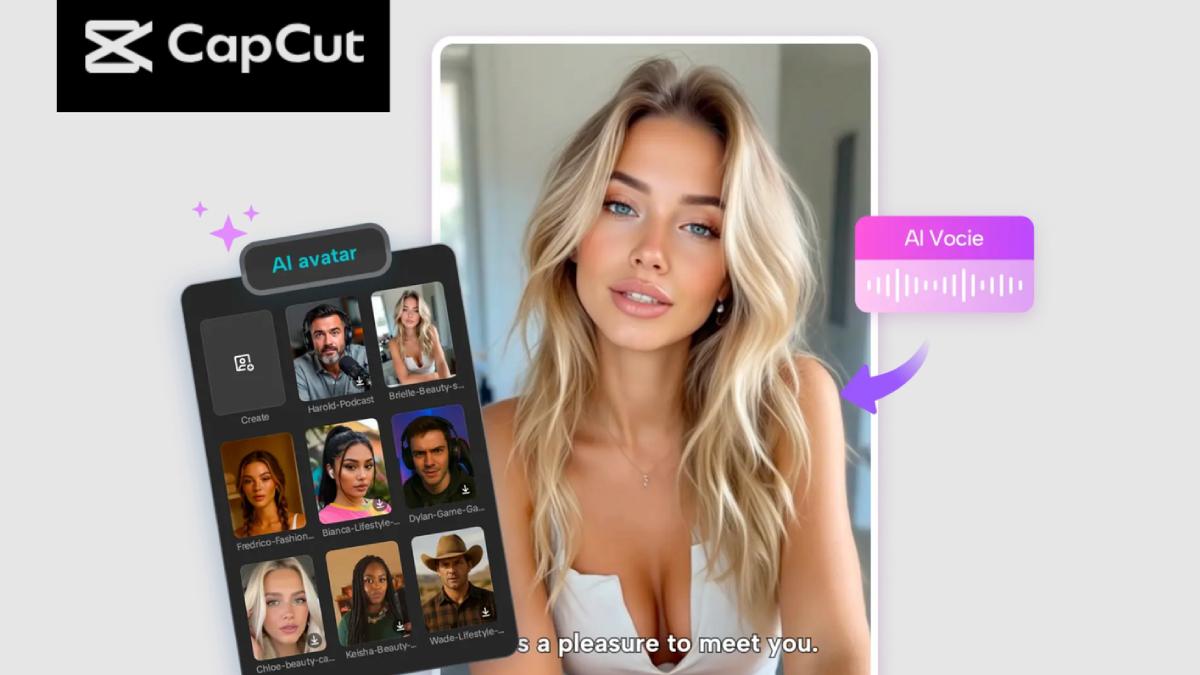
Content creators, entrepreneurs, educators, and brand builders are always searching for creative ways to produce videos without the stress of cameras, lights, or full production setups. That’s where CapCut’s AI Avatar tool rises above every trend. It gives you the power to create a complete virtual team—characters who can speak, act, and deliver your message—all without ever stepping in front of the camera.
Building a virtual team might sound futuristic, but with CapCut, it’s incredibly simple. Whether you want hosts for your YouTube channel, spokespersons for your company, instructors for tutorials, or characters for storytelling, CapCut AI Avatars do the job in minutes. You get realistic movement, expressive faces, and natural voices powered by AI, making your content look polished and studio-quality. Let’s break down how this feature empowers you and why creators love it.
Why Build a Virtual Team with CapCut AI Avatar?
Before jumping into the steps, let’s look at how a virtual cast can transform your workflow:
1. No Need for On-Camera Talent
If you’re camera-shy or simply don’t want to hire actors, CapCut avatars act as ready-made presenters. They can deliver tutorials, explain products, narrate stories, or host educational videos without you appearing on screen.
2. Unlimited Characters for Any Role
Need a trainer, a CEO, a friendly guide, a stylish influencer, or a sci-fi character? CapCut’s avatar library has over 1,000+ characters, covering every style and personality. You can pick multiple avatars and assemble a complete team.
3. Fast, Affordable, and Completely Customizable
Traditional production requires actors, locations, cameras, retakes, editing, and re-shoots. With AI avatars, you can generate videos instantly and update them anytime—saving both money and hours of work.
4. Language Flexibility
CapCut offers 150+ AI voices in many accents and tones. This means your virtual team can speak multiple languages and reach a global audience without hiring separate voice artists.
How to Build a Virtual Team Using CapCut AI Avatar
Step 1: Access the AI Avatar
Open CapCut, then navigate to “AI Avatar” > “Avatar Library.” Browse through over 1,000 characters and select your favorite to use in your project.
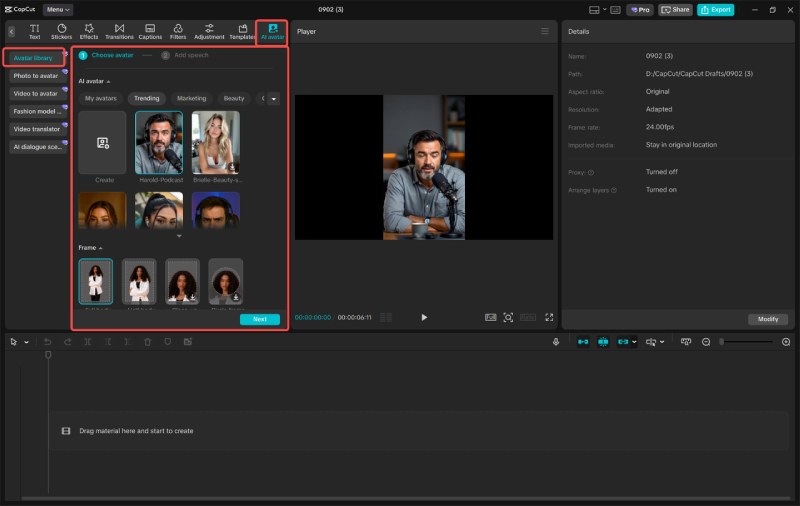
Then, click “Add Speech” to choose from 150+ AI voices and make your character talk. Try the CapCut Text to Speech AI tool to add narration to your video. Finally, click “Generate” to bring it to life. This first step is where you start assembling your virtual team. You can pick different characters for different roles—one avatar can host your tutorials, another can present news updates, another can introduce your brand, and so on. Mix and match as many avatars as you need to create your full digital cast.
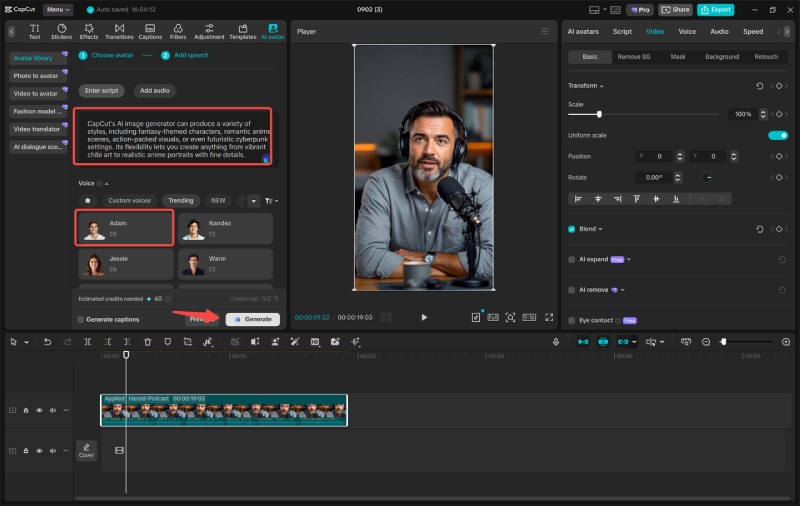
Tip: Try picking avatars with complementary styles. For example, one formal avatar for professional content and another for casual explainer videos.
Step 2: Edit Your Avatar Video
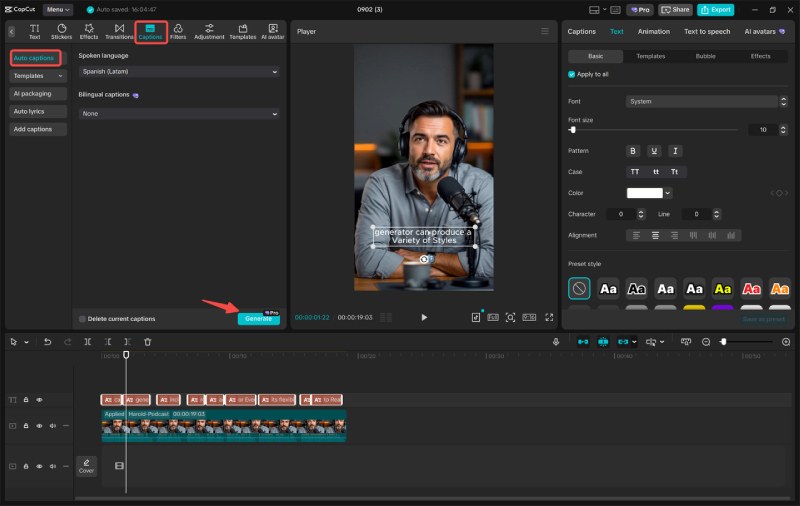
Once the avatar is generated, you’re ready to polish it. Use “Filters” to enhance the video’s look and feel. Whether you prefer cinematic tones, bright colors, or soft aesthetics, you can quickly set a style that matches your content theme. Next, customize the background. You can switch the scene to an office, classroom, studio backdrop, nature setting, or any environment that fits your script. Then, improve accessibility by clicking “Captions” > “Auto captions” to generate subtitles instantly.
This editing step gives your avatar video personality and professionalism. If you’re building a virtual team, try keeping your visuals consistent—matching backgrounds, filter styles, or branded colors helps make your series look organized and intentional. Want even more polish? Add transitions between different avatars, including text overlays, sound effects, or background music, to make the final output engaging and dynamic.
Step 3: Export Your Avatar
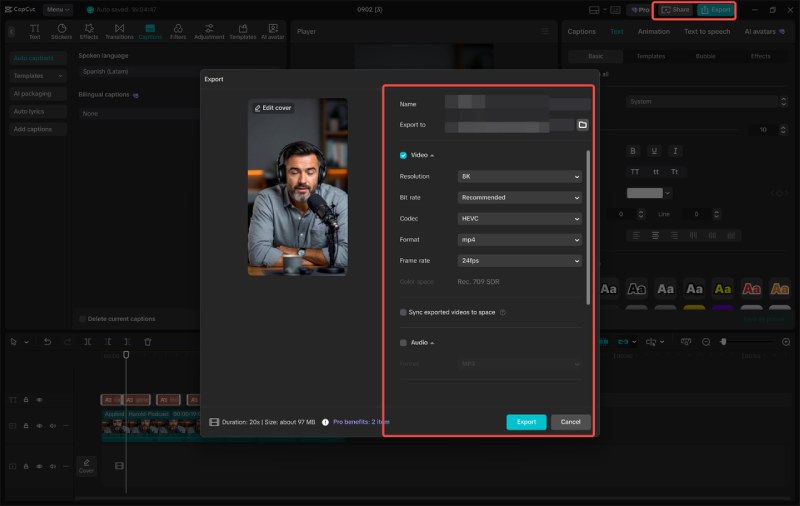
When your avatars are ready and fully edited, it’s time to share them with the world. Export your finished character video to your device or share it directly to platforms like YouTube, TikTok, or Instagram with a single click. Let your creation shine online and impress your friends, viewers, or customers. This is the moment your virtual team goes live—ready to deliver messages, present ideas, teach lessons, or promote your brand just like real on-screen presenters.
Creative Ways to Use a Virtual Team
Building a virtual team opens the door to endless content ideas. Here are some practical ways to use your newly created avatars:
- Team-Hosted Tutorial Channels
Imagine each avatar explaining different topics—tech, cooking, productivity, design, fitness, and more. You can run an entire channel without ever recording yourself.
- Customer Support or Onboarding Guides
Use avatars to greet new users, explain product features, or walk viewers through setup instructions.
- Business Announcements
Let your digital CEO avatar deliver updates, monthly summaries, and internal messages in a clean, consistent format.
- Storytelling and Animation
Create multiple avatars and turn them into characters in a short film, comedy skit, interview, or educational series.
Conclusion
CapCut’s AI Avatar tool unlocks a new level of creative freedom. Instead of worrying about lighting, rehearsing lines, or recording takes, you can generate professional-looking videos powered by a team of virtual characters. It’s fast, flexible, and perfect for creators who want to elevate their content without spending time or money on production. Whether you’re building a personal brand, running a business, or simply having fun experimenting with AI, your virtual team can help you publish more content in less time—and keep everything looking sharp and engaging.
Also Read: How to Create a Free Digital Business Card in Minutes: A Simple Tech Guide


The Tech-Savvy Traveler’s Guide to Urban Adventures
Your smartphone has become the ultimate travel buddy for exploring a new city. It’s your map, your translator, your camera,…

Third-Party vs Comprehensive Insurance: Finding the Right Cover for Your Scooter
Your scooter needs reliable insurance that can provide financial protection when any unexpected situation arises. Third-party and comprehensive policies provide…