


Most migration projects do not fail because the tooling is weak. They fail because the team treated the move as a file transfer. If you plan to migrate to Dynamics 365, the real work sits in decisions made weeks before any data leaves the old system, and this guide walks through those decisions in the order you will face them.
Decide what “migration” means for your system
One misconception is that every Dynamics 365 migration looks the same. It does not. A team running an on-premises Dynamics CRM faces a different job than a team on Dynamics AX, NAV, or GP, and a team coming from a non-Microsoft platform faces a different job again. The source system decides your data model, your customizations, and how much needs to be rebuilt.
So before you touch data, pick your approach:
- Lift-and-shift rehosts the system with minimal change.
- Replatforming makes small adjustments so things work in the new environment.
- Refactoring redesigns processes to use what Dynamics 365 already does natively.
Lift-and-shift sounds cheaper, and on day one it usually is. Then you discover that you carried over years of custom code for features the new platform handles out of the box, and you now maintain both the old workarounds and the new system. Refactoring costs more upfront, but it is the only option that lets you leave old problems behind.
Audit before you map
Another misconception is that a good migration moves everything. It does not, and it should not. Every record you load is a record someone has to validate, and most legacy systems hold years of duplicates, dead accounts, and half-filled fields that nobody has touched in a decade.
- Start by sorting your data into four groups: master data such as customers, vendors, and products, transactional data such as orders and invoices, historical records, and custom entities.
- Then make a call for each group. Some data migrates, some gets archived where you can still read it, and some retires entirely. Historical transactions are the usual candidates for archiving, because users rarely need them inside daily workflows but auditors sometimes need them on request.
- Also map dependencies at this stage. A customer record that feeds three integrations cannot move on its own schedule.
Treat the mapping document as your real asset
Now comes the part where teams argue about tools. They compare options for weeks and then spend ten minutes on the mapping document, which is backwards. The tools matter less than you think. Microsoft’s Configuration Migration Tool handles configuration data, the import wizard covers smaller loads, Azure Data Factory suits repeatable pipelines, and third-party integration tools earn their place when the data needs heavy transformation.
The mapping document is what actually protects you. For every field, it should state the source, the target, the transformation rule, and the person who owns the answer when something looks wrong. When a finance lead asks why a balance differs after go-live, that document is how you answer in minutes instead of days. Test your mapping on a small sample first, because a wrong rule is cheap to fix on fifty records and painful to fix on five million.
Rehearse in a sandbox more than once
It is tempting to believe that one successful test run proves the plan works. One run proves that one run worked. A sandbox exists so you can migrate repeatedly, break things, fix them, and time each load. Run the full migration at least a few times, and let real users test the result instead of only the project team. Users notice the things mappings miss, such as a status code that now means something different or a report that quietly lost a column.
Stress-test the integrations too. Links to ERP, HR, and third-party applications are where surprises tend to hide, because they depend on systems you do not control. Timing matters as well. After a few rehearsals you will know how long the real load takes, which tells you how long your cutover window needs to be.
Plan the cutover, then plan the rollback
The next misconception is that go-live is the finish line. It is closer to the midpoint. You still need to choose between moving everything at once and moving in waves. A single big cutover is simpler to explain and far riskier to run, since any problem hits the whole business together. Waves by module, business unit, or region let you learn from the first group and apply that to the second, at the cost of running two systems side by side for a while.
Whichever you choose, schedule the cutover for a low-activity period, monitor the load as it runs, and write the rollback plan before you need it. Decide in advance who has the authority to call a rollback and what conditions trigger it. A team that debates that question at two in the morning is already behind.
Sort out security before the data arrives
A quieter misconception is that security is something you configure after the data is in place. By then, sensitive records are already sitting in an environment where access may be too broad.
- Decide who can see what before the first production load.
- Set up role-based access so each team sees only the records it needs
- Apply data loss prevention policies to control how information moves between connected apps
- Confirm your encryption and retention requirements with whoever owns compliance.
This matters most when you consolidate several legacy systems into one. Each old system had its own permission habits, and some of them were informal, such as a shared login that everyone knew. Moving to a single platform is a chance to replace those habits with clear rules. Schedule a compliance review after the migration too, so you can confirm that access in practice matches access on paper.
Validate, then support the people
After the data lands, check that it is right. Confirm that records match the source, that integrations pass data in both directions, and that key processes behave the same way they did before. For critical processes such as financial close, consider running the old and new systems in parallel for one cycle and comparing results. Get sign-off from the business owners, not only from the project team, so accountability sits with the people who depend on the data.
Then look after adoption, because a technically perfect migration still fails if people avoid the new system. Role-based training works better than generic sessions, since a warehouse lead and a sales rep need different things on day one. Give people quick reference guides, a helpdesk they can reach easily, and a way to report problems that someone actually reads. Timelines depend on data volume, complexity, and the number of integrations, so expect a few weeks for simple moves and a few months for complex ones. Those estimates only hold if you leave room for this phase.
Where to Go from Here
A migration does not end at go-live. Performance needs tuning, feedback needs acting on, and early data issues surface for weeks afterward. If you want experienced hands on that stretch, it makes sense to get in touch with a Dynamics 365 Support Service Provider who can review your environment, monitor the first few cycles, and fix problems before users lose confidence in the system.
Where AI Sits Inside Dynamics 365: An
App-by-App Guide
Microsoft has built AI into almost every Dynamics 365 app, which makes the question of where it actually lives harder to answer than it sounds. There is no single AI switch. There are assistants, autonomous agents, and small built-in features spread across sales, service, finance, supply chain, and more. So this guide maps them app by app, based on Microsoft’s own documentation, so you know what exists before you plan around it.
Start with the platform, not the apps
One common misconception is that every Dynamics 365 app gets its AI separately. In reality, Sales, Customer Service, and Customer Insights are model-driven apps built on Power Apps and Microsoft Dataverse, so the Copilot features available in model-driven apps flow into them automatically. The finance and operations apps then share a Copilot layer of their own.
On the model-driven side, you get form fill assistance that suggests values for fields, a natural language way to find data in a view, charts generated from a view, row summaries of records, and timeline highlights that turn a long activity history into a short bulleted list. Microsoft 365 Copilot, the agent feed, and the Power Apps MCP server are also part of the set, although Microsoft labels them as previews. Microsoft also notes that some features might not appear in every app or may need to be enabled, so assume nothing is switched on by default.
The finance and operations apps share a conversational help sidecar, a chat experience over your structured business data, a workflow history summary, and Immersive Home, a workspace designed around working alongside agents. Developers can also build agents on the Dynamics 365 ERP MCP server, which Microsoft describes as a way to work with business logic without custom connectors or APIs.
Sales, service, and marketing
Another misconception is that AI in the front office just means a chatbot. In Dynamics 365 Sales, Copilot summarizes leads, opportunities, and accounts, prepares sellers for meetings, drafts emails, and surfaces news about customers. Then the agents take over parts of the work itself. The Sales Qualification Agent researches leads and sends outreach, the Sales Opportunity Agent flags risks and promising deals, the Sales Close Agent handles the path to closure, and the Sales Research Agent answers complex questions about your sales data in natural language.
Customer Service and Contact Center follow a similar pattern. Reps can ask questions about their data, receive proactive prompts, summarize conversations and cases, draft emails, and generate knowledge drafts from resolved cases. The agent list is longer here. A Case Management Agent automates the case lifecycle, a Customer Knowledge Management Agent keeps articles current, a Quality Evaluation Agent assesses customer interactions, and Customer Intent Agents feed intent-driven routing. Supervisors also get a rollout manager and an agent insights dashboard, which tells you Microsoft expects agents to be introduced in phases and monitored once they are live.
Customer Insights brings AI to marketing. Teams can build segments in everyday language, create journeys from a described goal, generate and rewrite email content, and get image recommendations that match the message.
Finance, supply chain, and projects
You might assume the back office is where AI matters least, yet a good share of the agents sit there. Dynamics 365 Finance includes AI summaries on the customer page and in the collections coordinator workspace, along with an Account Reconciliation Agent, which Microsoft lists as a production ready preview. It flags differences between the subledger and the general ledger, suggests ways to resolve them, and can eventually resolve them for you.
Supply Chain Management offers AI summaries, Copilot analysis of demand plans, workload insights for warehouse work, and a Supplier Communications Agent that automates vendor follow-ups and purchase order changes. Project Operations has Copilot in time entry, a feature that drafts a work breakdown structure from a project name and description, and three agents for time entry, expenses, and approvals, all listed as production ready previews.
Field Service, Business Central, Commerce, and sustainability
Then come the industry-specific and mid-market apps. Field Service technicians can update work orders using text or speech in the mobile app, and admins can turn PDFs or images into draft inspection templates. Dispatchers get a Scheduling Operations Agent, still in preview, that helps optimize schedules after cancellations or delays.
Business Central has one of the broadest lists. Copilot suggests sales lines, reconciles bank accounts, maps vendor invoice lines to purchase orders, suggests substitute items, and writes product marketing text. The Sales Order Agent and the Payables Agent capture orders and process vendor invoices from email, then show their drafts to a human supervisor for review. Commerce gives store associates customer and product insights and helps teams enrich product pages through site builder. Microsoft Sustainability Manager adds preview features for querying data, finding facts for ESG disclosures, and generating reports, including CSRD reports.
Outside the apps themselves, Microsoft also lists Sales and Service experiences inside Outlook and Teams through Microsoft 365 Copilot, so some of this AI reaches people who never open Dynamics 365 directly.
What this changes for planning
The last misconception is that AI is something you bolt on after go-live. The feature list above says otherwise. Several capabilities are previews, some need to be enabled, and the agents depend on clean data, clear rules, and a human supervisor. So the decisions about which agents to adopt, who reviews their output, and how you phase them in belong in the plan from the start of your Dynamics 365 implementation, not in a cleanup phase months later.
A practical approach has three steps. First, map the AI features to the apps you actually license, because the catalog is broad and most teams will use a small slice of it. Second, separate generally available features from preview ones, since previews carry a different risk profile for regulated or customer-facing processes. Third, decide your review model before you turn agents on. The payables, sales, and case agents all show drafts or actions to a supervisor, so someone needs to own that queue every day.
Data readiness deserves its own mention. A summary is only as good as the record behind it. Timeline highlights, case summaries, and row summaries all draw on what your users already captured, so inconsistent notes and half-filled fields will show up in the AI output. Fixing that during configuration costs far less than explaining it to users after launch.
Finally, treat adoption as a change management task. Reps and accountants trust AI suggestions when they understand where the suggestions come from and how to override them. A short training session on the agent feed and on reviewing agent drafts will do more for adoption than any feature announcement.
Where to go from here
Microsoft updates this catalog often, and features move between preview and general availability. So treat the list above as a snapshot of what Microsoft documented on its overview page, and check the current status of any feature before you commit to it. If you want help deciding which of these capabilities fit your setup, and how to keep them running well after launch, it makes sense to get in touch with a Dynamics 365 support service provider who can review your apps, licenses, and data and tell you what to switch on first. A good partner will also track preview features as they mature, monitor agent performance through the dashboards Microsoft provides, and handle the tuning that follows each update.
Dynamics 365 Migration: Thinks to Know Before a Single Record Moves


Dynamics 365 Migration: Thinks to Know Before a Single Record Moves
Most migration projects do not fail because the tooling is weak. They fail because the team treated the move as…
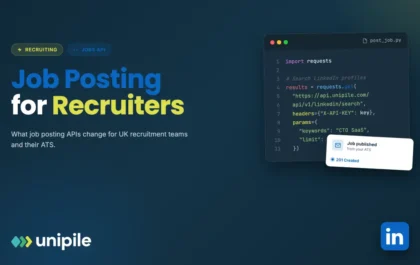
Fewer Tabs, Fresher Adverts: What Job Posting APIs Mean for UK Recruitment Teams
Ask any in-house recruiter or agency consultant in the UK where their week goes, and a surprising share of the…