

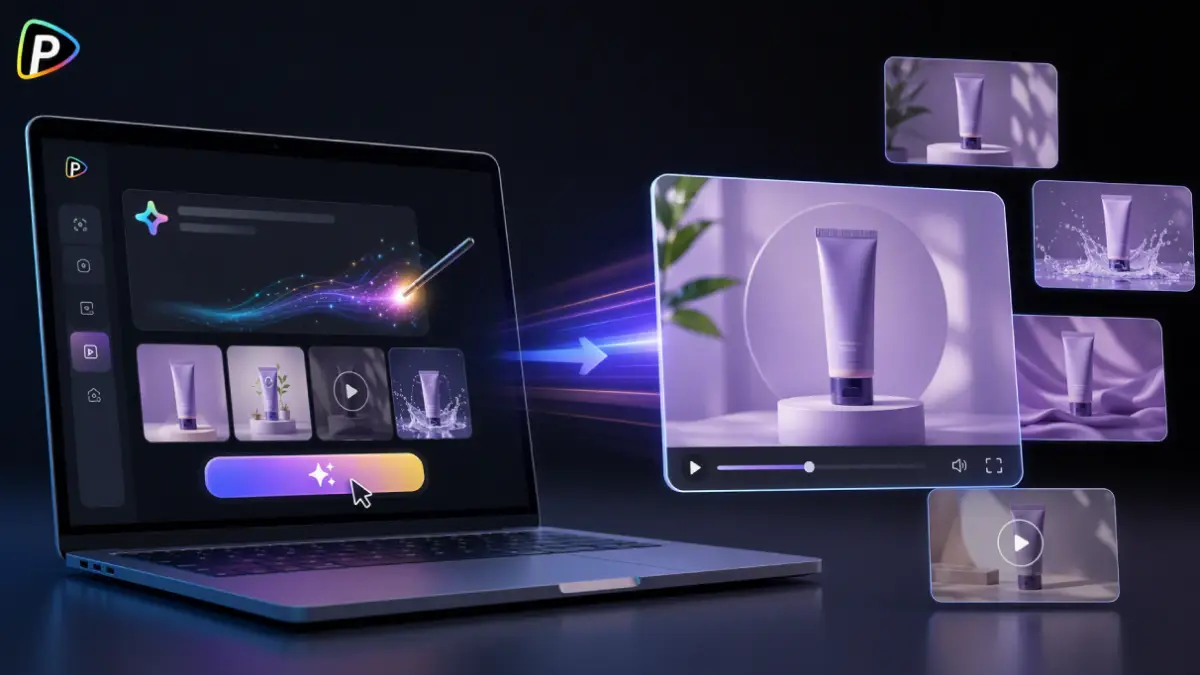
Creating product videos often requires planning a shoot, preparing equipment, and arranging suitable scenes. For many businesses, especially those that need frequent marketing content, filming every product variation can take significant time and resources. With Seedance 2.5 on Pollo AI, users can create product videos without filming by providing product images, text descriptions, or visual references. Instead of recording physical footage, they can describe how the product should appear, move, and interact with the environment, allowing the AI model to generate a video based on those instructions.
This workflow is useful for creating product showcases, promotional clips, and social media content when businesses want to explore different visual ideas without setting up a traditional production process.
How to Create Product Videos with Seedance 2.5 on Pollo AI
Users can create product videos by selecting Seedance 2.5 on Pollo AI, uploading product references, and providing detailed prompts that describe the desired video style and movement. The process mainly involves preparing suitable inputs, configuring generation settings, and refining the output.
Select Seedance 2.5 on Pollo AI and Start Creating
First, users can open Pollo AI and enter the AI video generator workflow. After selecting the video generation function, they can choose Seedance 2.5 in Pollo AI as the model to create the product video.
Seedance 2.5 supports text-to-video and image-to-video generation, allowing users to start with either a written idea or an existing product image. For product videos, image-based generation is often more suitable because it helps the model understand the product’s appearance before creating motion.
After selecting the model, users can upload a product image or add other available references depending on the type of video they want to create.
Upload Product Images as References
A clear product image helps Seedance 2.5 better understand the product’s shape, color, and design details.
Users can provide a main product image, close-up details, or different angles when necessary. For example, a skincare brand may upload the product packaging and texture details, while an electronics seller may provide images showing the front, side, and functional parts of the device.
However, adding more images does not always guarantee better results. Images with repeated angles may provide little additional information, while inconsistent images from different product versions may affect product consistency. It is usually better to provide a smaller number of clear and accurate references.
Before generating the video, users should also make sure the product images represent the actual item. Low-quality images, unclear details, or outdated product visuals may lead to inaccurate results.
Write a Detailed Prompt with Product Motion Instructions
After uploading the reference image, users need to describe how the product should appear in the video. A common mistake is only describing the product itself without explaining movement, camera perspective, or scene atmosphere.
A useful product video prompt usually combines:
- The product details
- The desired action or camera movement
- The environment and visual style
For example:
“Create a product showcase video featuring a wireless speaker placed on a modern desk. Show a slow 360-degree camera orbit around the speaker, highlight the texture and buttons with close-up shots, and use clean studio lighting with a premium commercial style.”
This type of prompt gives Seedance 2.5 clearer instructions about the expected result. Instead of simply asking for “a video of a speaker,” users provide information about how the product should be presented.
When creating prompts, users should avoid adding unnecessary details that do not affect the final scene. Too many conflicting instructions may make the generated video less consistent.
Adjust Video Settings Before Generation
Before generating the final video, users can adjust settings based on their content requirements.
The aspect ratio is an important consideration. Vertical formats such as 9:16 are commonly used for short-form content on mobile platforms, while wider formats such as 16:9 may be more suitable for websites, presentations, or standard video advertisements.
Users can also consider the video duration and overall pacing. A short product teaser may focus on one visual idea, while a longer product demonstration may require more scene changes.
If unwanted elements appear during generation, users can include negative prompts to reduce issues such as incorrect text, unnecessary objects, or distracting backgrounds. However, negative prompts should be used carefully. Overly restrictive instructions may prevent the model from producing natural-looking scenes.
Generate, Review, and Refine the Product Video
Once the prompt and settings are ready, users can generate the video and review the output.
The first version may not always perfectly match the intended idea. Users should check whether the product remains visually consistent, whether the movement looks natural, and whether the generated scene communicates the product’s main features.
If improvements are needed, users can adjust the prompt, replace the reference image, or modify the description of camera movement and environment. For example, changing “show the product” to “slowly rotate around the product with close-up details” can provide clearer guidance for the model.
After refinement, users can export the final video and use it for product pages, advertisements, social media campaigns, or other marketing materials.
Tips for Improving AI-Generated Product Videos
The quality of an AI-generated product video depends not only on the model itself but also on the accuracy of the input materials and creative direction. A few adjustments can help users achieve more consistent results.
Use Clear References and Specific Instructions
Product images should accurately represent the real item, especially when the product includes recognizable designs, packaging, or branding elements. Heavily edited images or outdated product visuals may cause differences between the generated video and the actual product.
At the same time, prompts should focus on the product presentation rather than adding unnecessary details. Clear instructions about camera movement, environment, and visual style usually help Seedance 2.5 create more targeted results.
Review and Refine Before Publishing
AI-generated videos may occasionally introduce unexpected changes, such as inaccurate text, altered product details, or inconsistent visual elements. Before publishing, users should review whether the final video matches the real product and brand style.
If adjustments are needed, changing the reference image or refining the prompt is often more effective than simply generating the same request again. Testing different creative directions, such as studio-style presentations or lifestyle scenes, can also help identify a more suitable format for different audiences.
Conclusion
Creating product videos without filming provides businesses with another way to produce marketing content using existing product information. Instead of preparing a complete shooting setup, users can provide product references, describe the desired motion, and generate videos through an AI workflow.
With Seedance 2.5 on Pollo AI, the process involves selecting the model, uploading product references, writing detailed prompts, adjusting video settings, and refining the generated result. While the final quality depends on the accuracy of the input materials and instructions, this approach offers a practical option for creating product videos for e-commerce, advertising, and social media use.
Also Read: How AI can Unlock your Startup’s Growth Potential


How Cultural Organisations Can Build a Useful Guest-Publishing Strategy
Guest publishing can help a cultural organisation reach people beyond its own website, but the value depends on more than…

Using Nano Banana: When to Generate, Edit, or Remove a Background
Imagine preparing three images for a shop that sells desk lamps: a reading-corner illustration for its blog, a product photograph…