

I used to think that running out of storage was the only reason to clean up a Windows PC. If I still had a few dozen gigabytes free, I assumed everything was fine.
Then I started noticing the little things. Windows took longer to start. Programs didn’t open quite as quickly as they used to. File Explorer sometimes felt sluggish, especially when I had several applications running at once. Even browsing could feel heavier than it should.
My first instinct was to blame the hardware. But before considering an upgrade, I decided to take a closer look at what was actually sitting on my PC. There was plenty of junk.
Old temporary files, browser caches, installation leftovers, unnecessary logs, and files from applications I hadn’t used in months had quietly accumulated. None of these things seemed important individually, but together they were taking up space and adding to the general clutter. That’s when I started using Advanced SystemCare to give my PC a proper cleanup.
My First Step: Scan the Whole PC
I started with the main scan rather than immediately deleting anything.
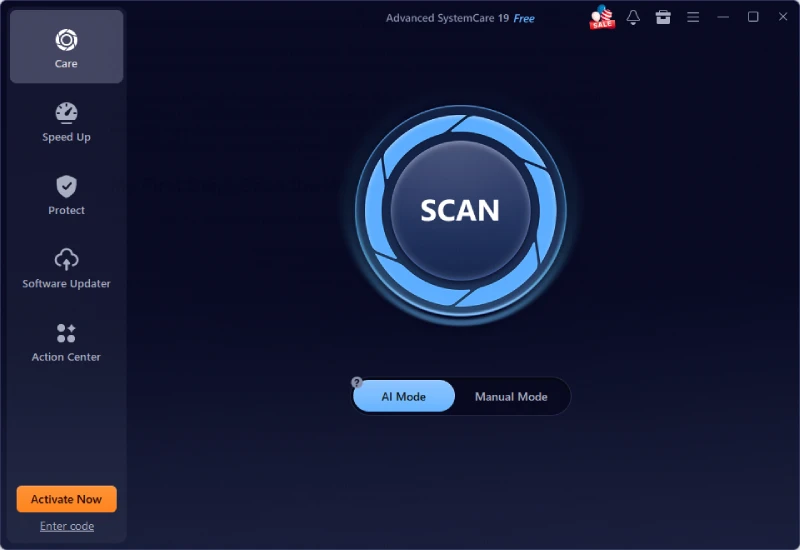
Advanced SystemCare checks several areas of the system, including junk files, privacy traces, startup items, and other potential sources of unnecessary clutter. Its AI Mode can also analyze the system and recommend optimizations based on its condition and usage.
I liked this because I didn’t have to guess where the problem was. Instead of opening Windows settings, browser settings, File Explorer, and other tools separately, I could get an overview from one interface.
The scan also gave me a better idea of just how much unnecessary data had built up.
Cleaning Temporary Files Made the Most Sense
The first area I focused on was junk files.
Advanced SystemCare’s Junk File Clean is designed to find temporary files, cache data, logs, and other unnecessary files that can accumulate during normal PC use. Some of the files were obvious. There were old temporary files from applications I had forgotten about and browser data that I no longer needed. There were also various system leftovers that I wouldn’t have known were safe to remove without some guidance.
I reviewed the results before cleaning rather than simply deleting everything. After the cleanup, I had more free storage and, more importantly, a much cleaner system. I wouldn’t say removing junk files suddenly doubled my PC’s speed. That’s not how it works. But getting rid of unnecessary clutter is a sensible part of keeping a Windows PC in good shape.
Browser Protection Was Another Part of My Routine
I spend a lot of time in a browser, so there was plenty of browsing data to deal with.
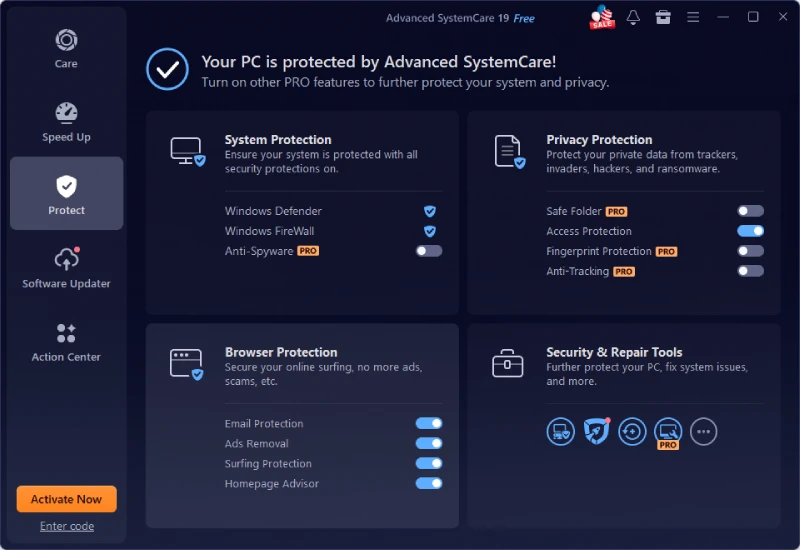
Advanced SystemCare includes privacy-related features that can clear browsing traces, cookies, cached files, and other unwanted data. It also offers Browser Protection to help protect browser settings from unwanted changes.
I don’t clean my browser every single day, and I don’t think there’s a need to obsess over it. But after months of normal browsing, clearing out unnecessary data makes sense, especially when several browsers are installed on the same PC.
Startup Programs Were Slowing Me Down
After cleaning the junk, I moved on to something that was affecting how my PC felt: startup programs.
I had accumulated quite a collection of applications that launched automatically with Windows. Some were useful. Others were things I rarely opened.
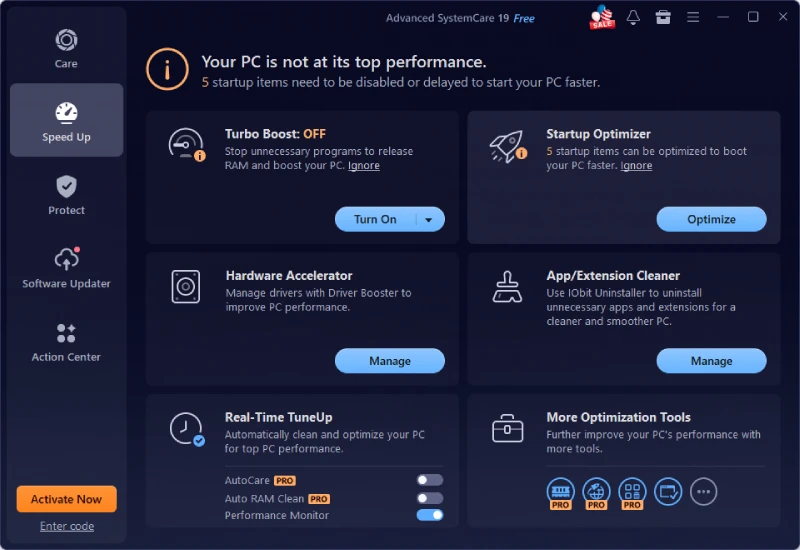
The Startup Optimizer helped me see what was launching when Windows started and identify programs that didn’t really need to be there. Advanced SystemCare is designed to manage startup items and help reduce unnecessary delays during boot.
I disabled a few programs that I didn’t need running immediately after logging in.
This was one of the changes I noticed most clearly.
My desktop had always appeared fairly quickly, but there was usually a period afterward when the PC still felt busy. After reducing the number of unnecessary startup applications, Windows became usable sooner.
For me, that was more noticeable than simply freeing up storage.
Real-Time TuneUp Helps After the Cleanup
Once the initial cleanup was finished, I wanted to avoid ending up in the same situation again. That’s where Real-Time TuneUp became useful.
The feature can monitor system resources and help optimize memory and disk usage while the computer is running. I tend to keep a lot of applications open, particularly browser tabs and communication tools. When I’m working on something demanding, that can add up quickly. Real-Time TuneUp gives me a way to keep an eye on resource usage without constantly opening Task Manager.
It’s not something I think about much, which is actually what I like about it. Once it’s configured, it can work in the background rather than becoming another maintenance task I need to remember.
I Use Turbo Boost When I Need Extra Resources
Advanced SystemCare also includes Turbo Boost, which is designed to free up system resources by reducing unnecessary background activity.
I mainly use it before gaming or when I’m working with heavier applications. The idea is pretty simple: if I’m about to run something demanding, I don’t necessarily need a bunch of unnecessary background services consuming resources at the same time.
It isn’t an overclocking tool, and I don’t expect it to produce huge FPS increases. I see it more as a quick way to prepare the PC for a demanding task. That makes it useful without expecting too much from it.
What Changed After the Deep Clean?
The biggest difference wasn’t one dramatic performance boost.
Instead, the PC simply felt less sluggish. Windows started more cleanly. I had more free storage. Applications felt more responsive, and I wasn’t seeing quite as much unnecessary background activity.
That’s why I think it’s better to describe the result as a smoother PC rather than a faster PC. There is a difference. Advanced SystemCare didn’t change my processor or add more RAM. It didn’t turn an old computer into a new one. What it did was remove some of the unnecessary baggage that had accumulated over time.
And that’s exactly what I wanted.
My Current PC Cleaning Routine
I no longer wait until my PC starts feeling slow before doing anything.
Every week or two, I run a scan and check what has accumulated. I’ll clean unnecessary junk files, look through large files when my storage starts getting low, and occasionally review startup programs.
If I’m preparing for gaming or another demanding task, I’ll also use Turbo Boost.
It takes very little time compared with manually checking everything myself.
More importantly, the routine is easy enough that I actually stick with it.
Final Thoughts
Deep cleaning my Windows PC didn’t produce some dramatic before-and-after transformation. What I noticed was something more practical: fewer unnecessary files, a cleaner startup, more available storage, and a system that generally felt more responsive.
Advanced SystemCare brought those maintenance tasks together in one place, from junk and large-file cleanup to startup optimization and real-time tuning.
For anyone whose PC has gradually become slower or more cluttered over time, I’d start with a good PC cleaner before assuming new hardware is the answer. Sometimes the computer doesn’t need an upgrade—it just needs a proper cleanup.
Also Read: Managing Business Smartphones Securely
How I Deep-Clean Windows PC Junk to Optimize Performance with Advanced SystemCare

How I Deep-Clean Windows PC Junk to Optimize Performance with Advanced SystemCare
I used to think that running out of storage was the only reason to clean up a Windows PC. If…
A Practical Mini Workstation Guide for Proxmox, Containers and Homelab Virtualization
Running a homelab used to mean a noisy rack of secondhand servers taking up half a closet. That has changed….